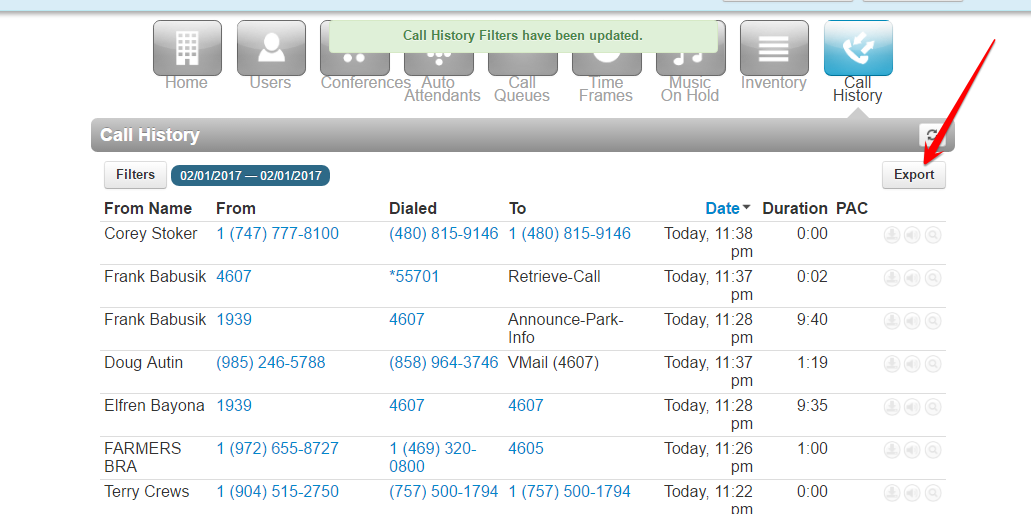

Listening to Call Recordings
All call recordings will be stored in the users Call History within the User Portal and can be played back on the fly or downloaded.
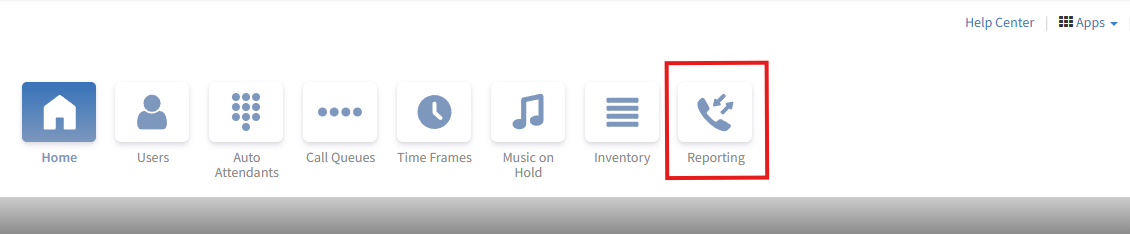
To begin, go to https://portal.lucidoneuc.com and login. Select the "Reporting" menu button.
Find the call you want to playback and click Listen (speaker icon), see below:
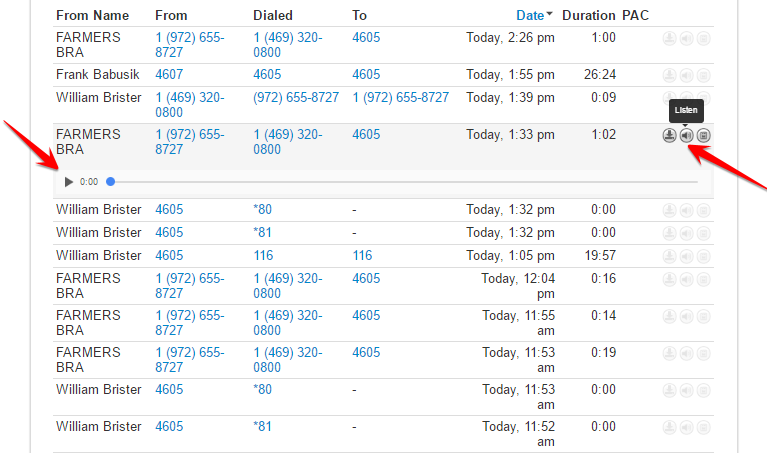
You can also download the call as a .wav file and play it back on your PC.
Adding Notes to a Recorded Call
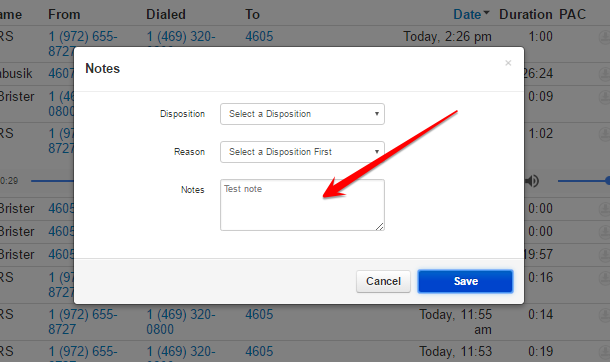
After a call is recorded, it is possible to Add Notes to the call. See the below image.
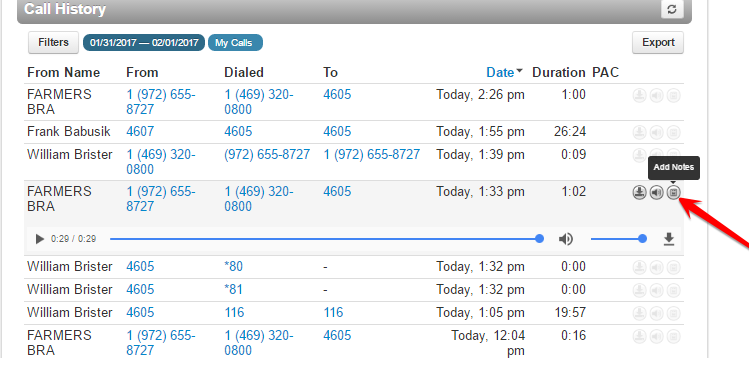
You will then see a "Notes" pop-up with Disposition, Reason and a Notes Field. Simply enter a note or notes and click Save.
Exporting Call Records
When and if you Export the call history you will see the Note/s in the Notes Column next to the call.