

3CX SIP Trunk - Registration Settings
Use the following settings for registering/configuring a 3cx SIP Trunk:
General Tab
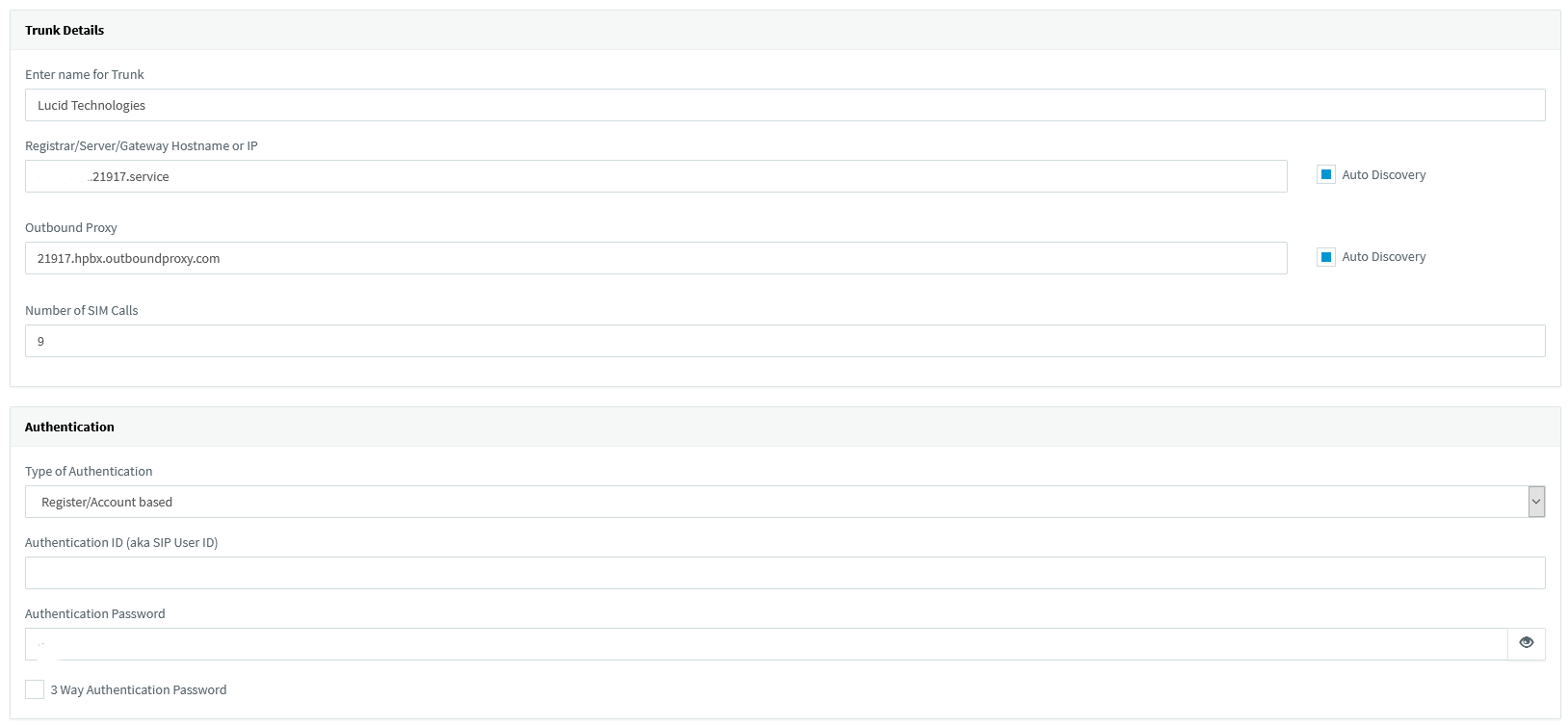
Trunk Details
Name: Lucid Technologies
Registrar/Server/Gateway Hostname or IP: {Your Service Domain}.21917.service
Port: 5060
Outbound Proxy: 21917.hpbx.outboundproxy.com
Port: 5060
Number of SIM Calls: {Enter The Number Of Simultaneous Calls}
Authentication
Type of Authentication: Register/Account based
Authentication ID (aka SIP User ID): SIP User
Authentication Password: SIP Password
Note: Authentication ID and Password will be provided by Lucid Technologies
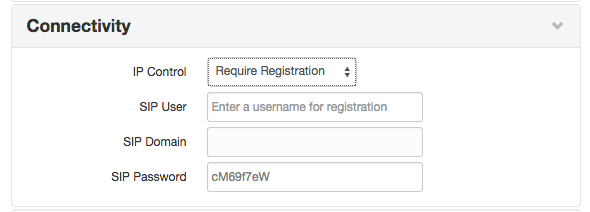
3 Way Authentication: Uncheck
Route calls to:
Main Trunk No: Caller ID/DID assigned (e.g. 9009991234)
Destination for calls during office hours: Extension (then choose extension from drop-down menu)
Destination for calls outside office hours: Extension (then choose extension from drop-down menu)
DID Tab
Numbers must be listed in 10 digit format. Do not include the 1
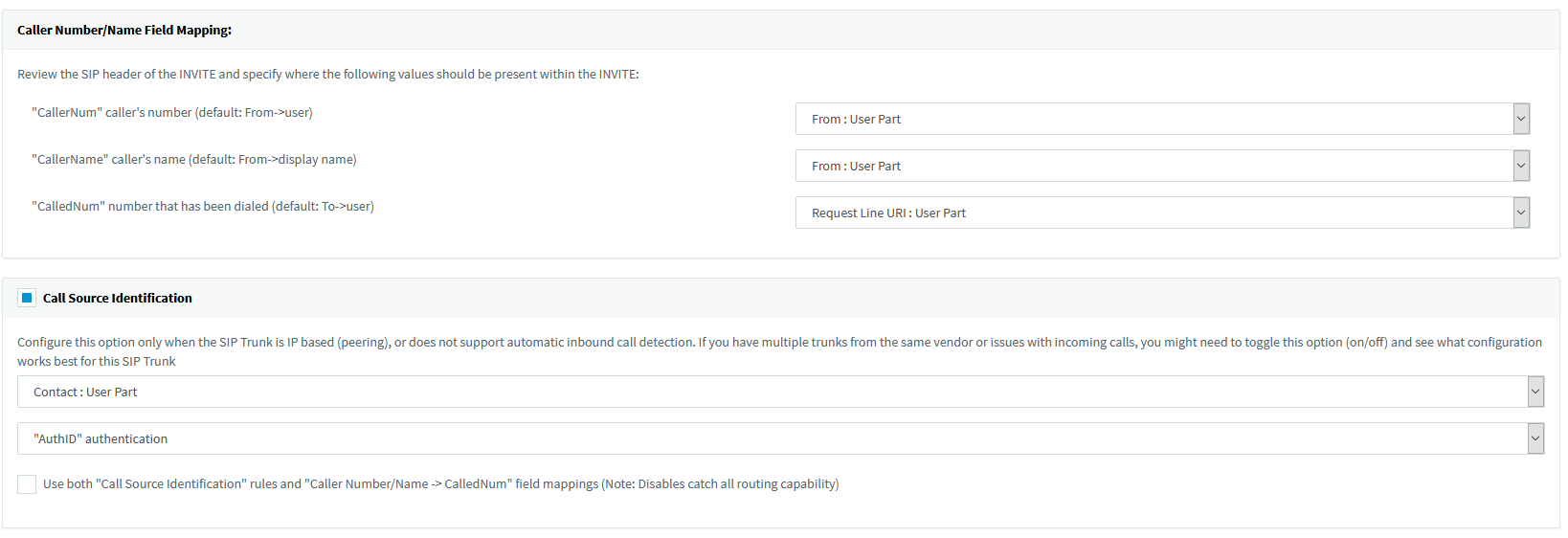
Note: The 3CX's template for our platform uses "From User" under Caller Name. This is to avoid an issue where calls to the PBX without a Display Name will show the Display Name as blanks on the phone. Otherwise, selecting "From: Display Name" will force the PBX to use the CID Name on the Display Name of the phones. Please use the setting that is appropriate for your setup.