

The ConnectUC SMS tab allows you to create, view, and manage SMS conversations.
Please note that SMS, Inbound Fax, and Voicemail Transcription are features that must be enabled by an Administrator, and these options may not appear for all users.
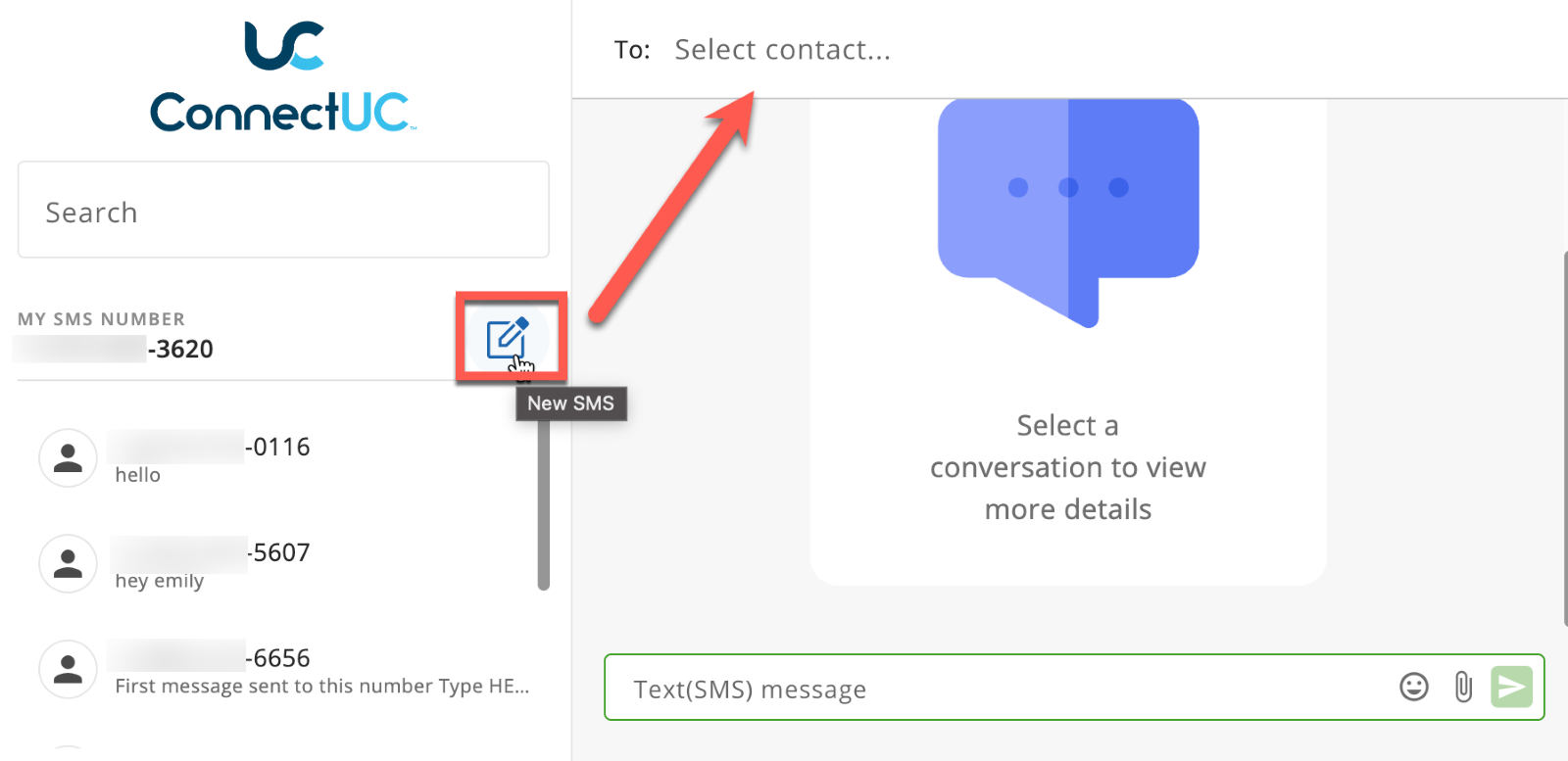
To create a new SMS conversation, click the ‘New SMS’ button that appears to the right of ‘My SMS Number’ and then type or search for the contact(s) you wish to message.
Due to the complexity of 10DLC compliance requirements for multiple recipients, Group SMS is temporarily disabled.
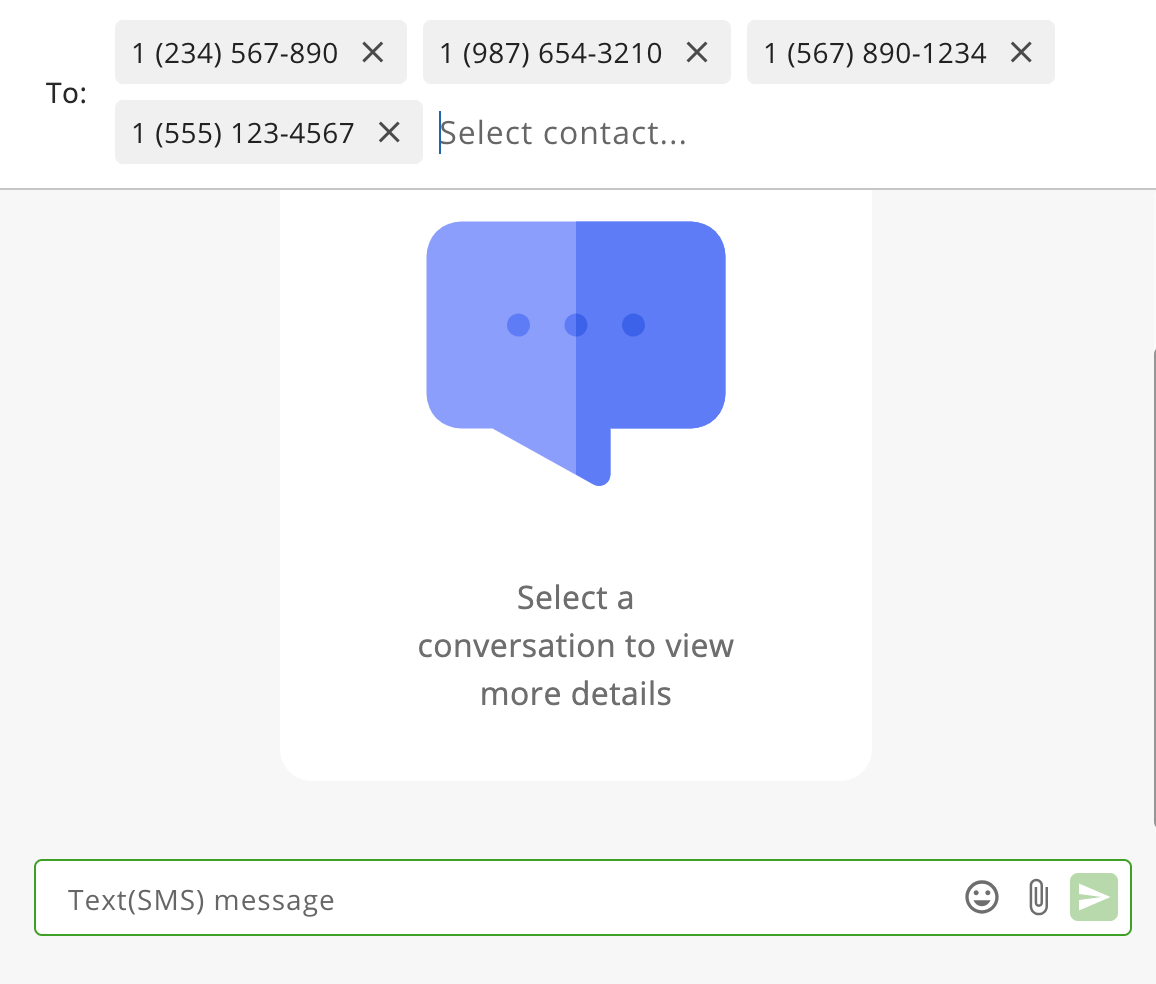
To message multiple contacts within the same SMS conversation (multi-party SMS), users can enter multiple numbers that they wish to message and either separate each number with a comma or simply click ‘tab’ to add another number. There is no limitation on the number of parties that can be added to a multi-party SMS conversation.
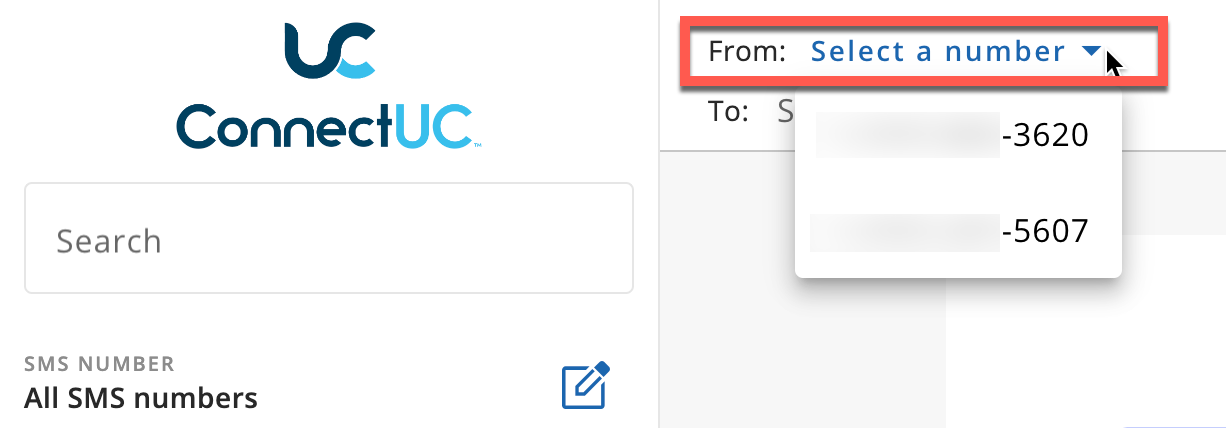
If a user has multiple SMS numbers assigned to them, they can select the outbound SMS number they wish to use by clicking the ‘Select a number’ option when creating a new SMS conversation, as pictured below.
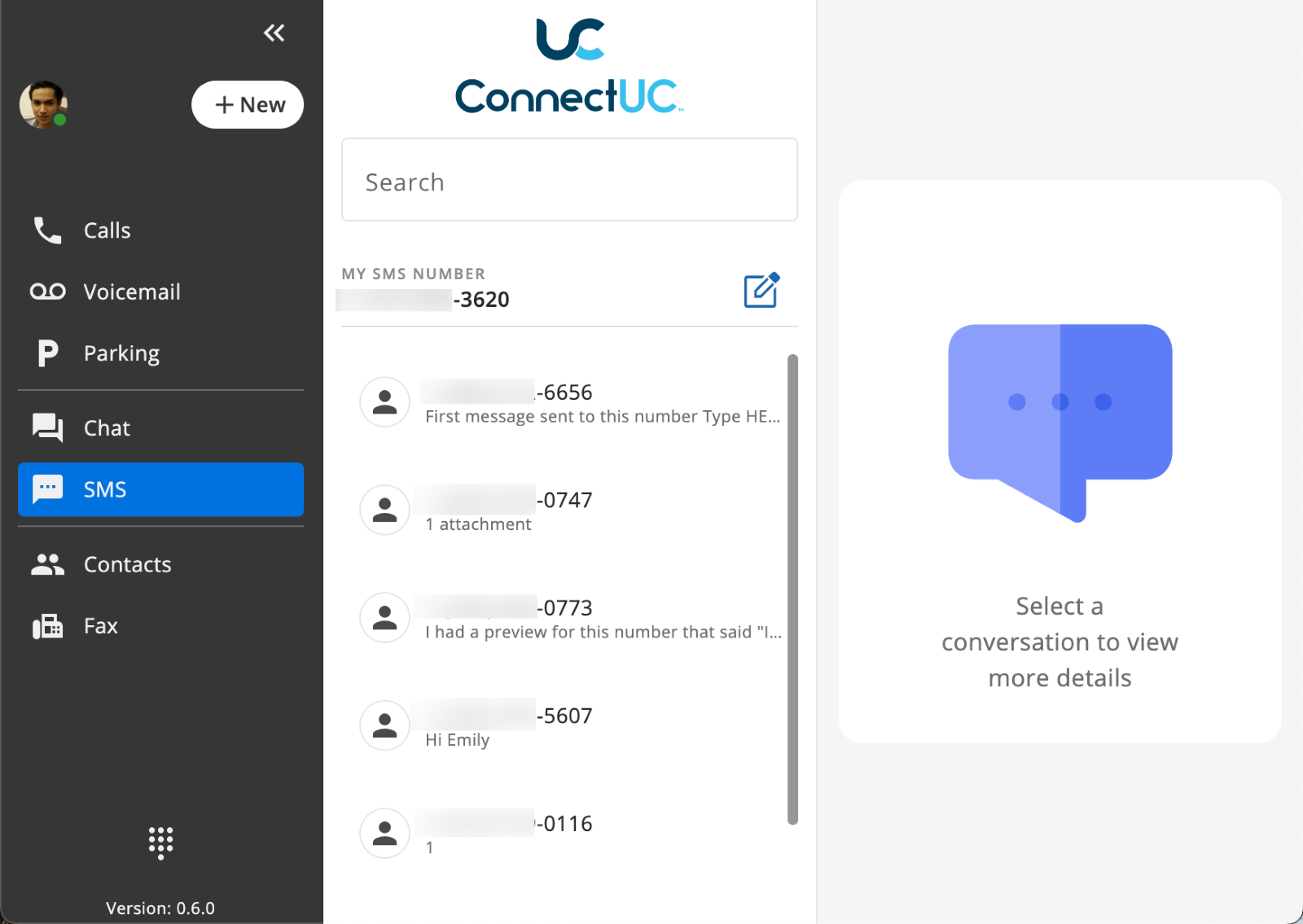
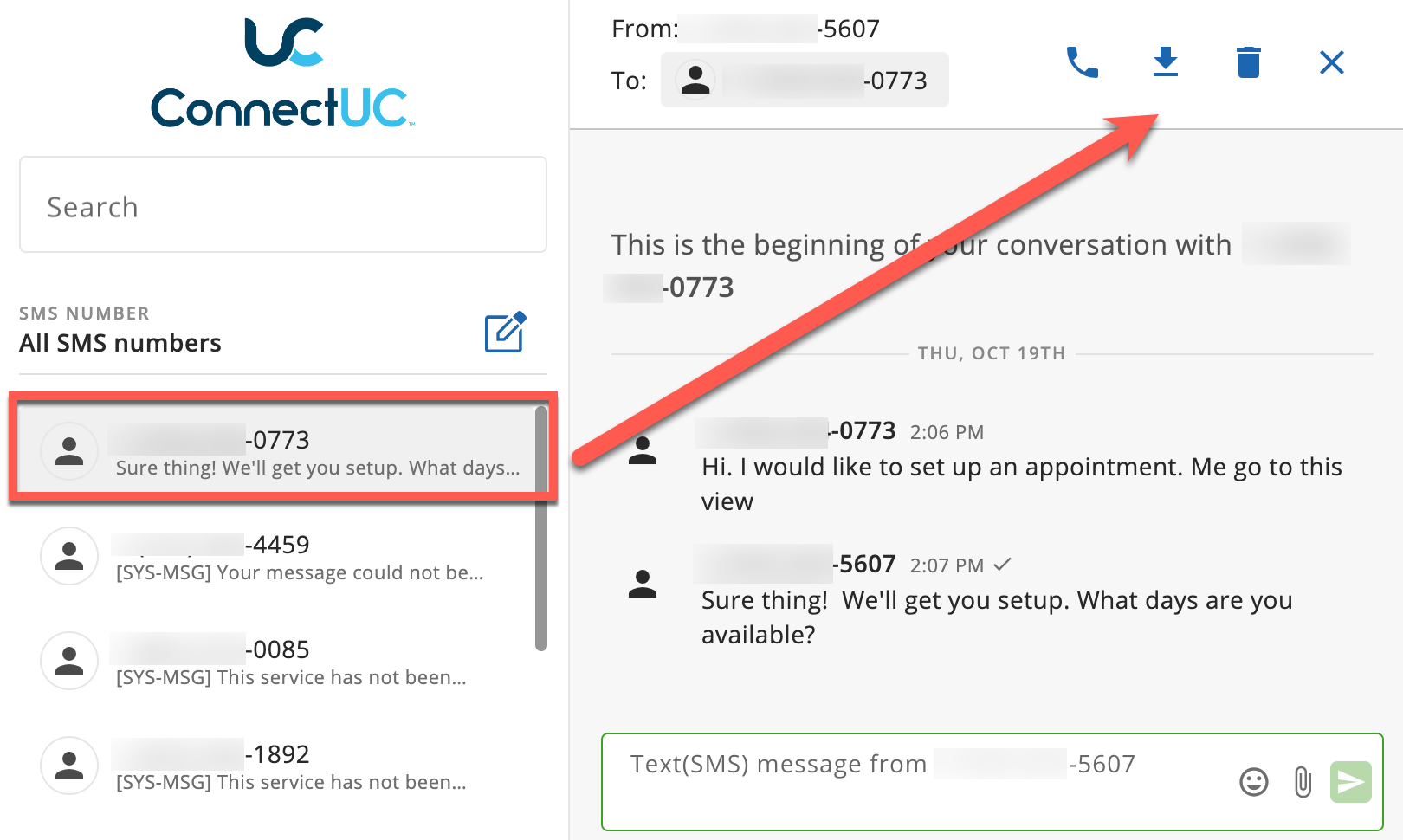
Existing conversations will appear on the left-side menu and can be selected from the list, or they can be located quickly by using the ‘Search’ bar at the top of the page.
If a user selects an existing SMS conversation from the list on the left-side menu, they can view the message history and reply with new messages. Users may also utilize the icons found at the top right-hand side of the page to call the contact, download the SMS conversation (.txt format), delete the SMS conversation, or close the conversation.
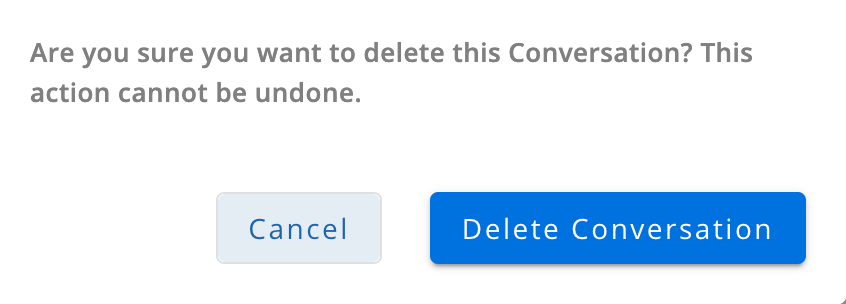
Please keep in mind SMS conversations cannot be recovered after they are deleted. If a user opts to delete an SMS conversation, they will be prompted with the confirmation message below before deletion.
When sending SMS, users may include Emojis or file attachments by clicking the appropriate icons to the right of the outbound SMS box.

SMS Attachments are supported for the following image file types:
.bmp
.dib
.gif
.jpg
.png
Image attachments up to 10 MB are supported and they are automatically resized to ensure delivery. Other SMS attachment types are not currently supported at this time.
If a user attempts to attach a file that exceeds the file limit, they will be presented with an error message.
