
This article is designed to help you familiarize yourself with the various tools and options within ConnectUC.
Begin by navigating to https://app.connectuc.io/ and sign in with your PBX credentials.
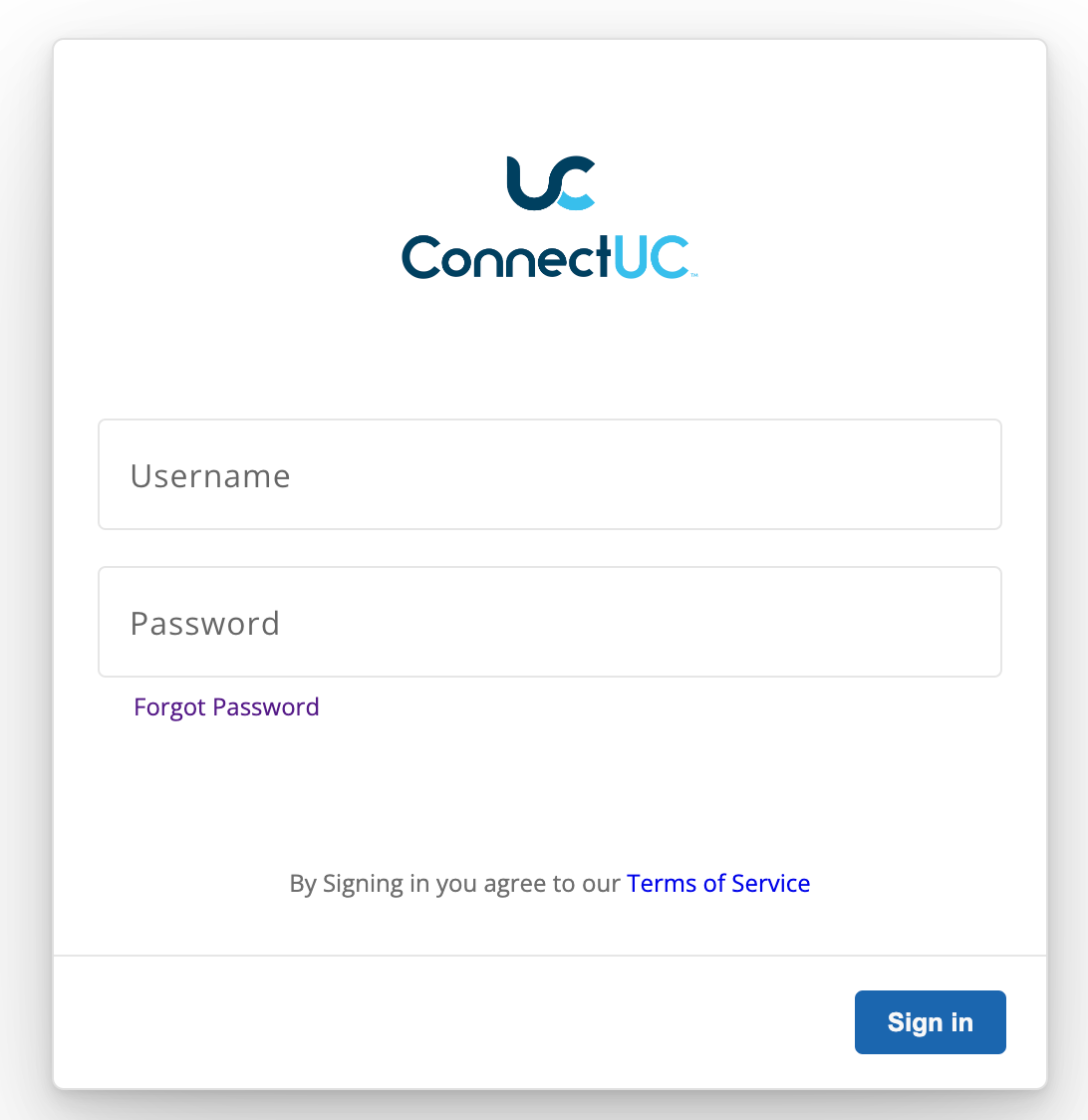
Important: To log in to ConnectUC, you'll need to use your UCaaS username (typically extension@domain).
You will not be able to use the same account as you use for your admin portal.
After the initial log-in, you will see a red banner at the top asking you to allow ConnectUC to play audio for incoming calls. You may also be asked to allow permissions for other functions within the app when they are required (i.e., video permissions for initiating a video call).

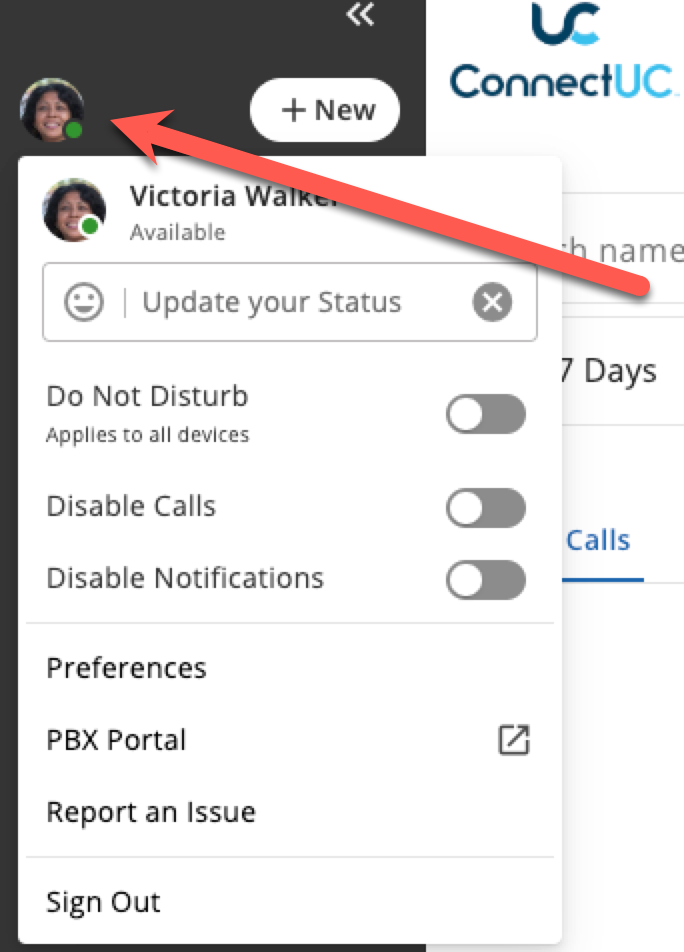
To access user settings and preferences, report an issue, or sign out, simply click on the user icon found on the left side of the screen.
Once signed in, you can select the function/feature you want from the left-side menu.
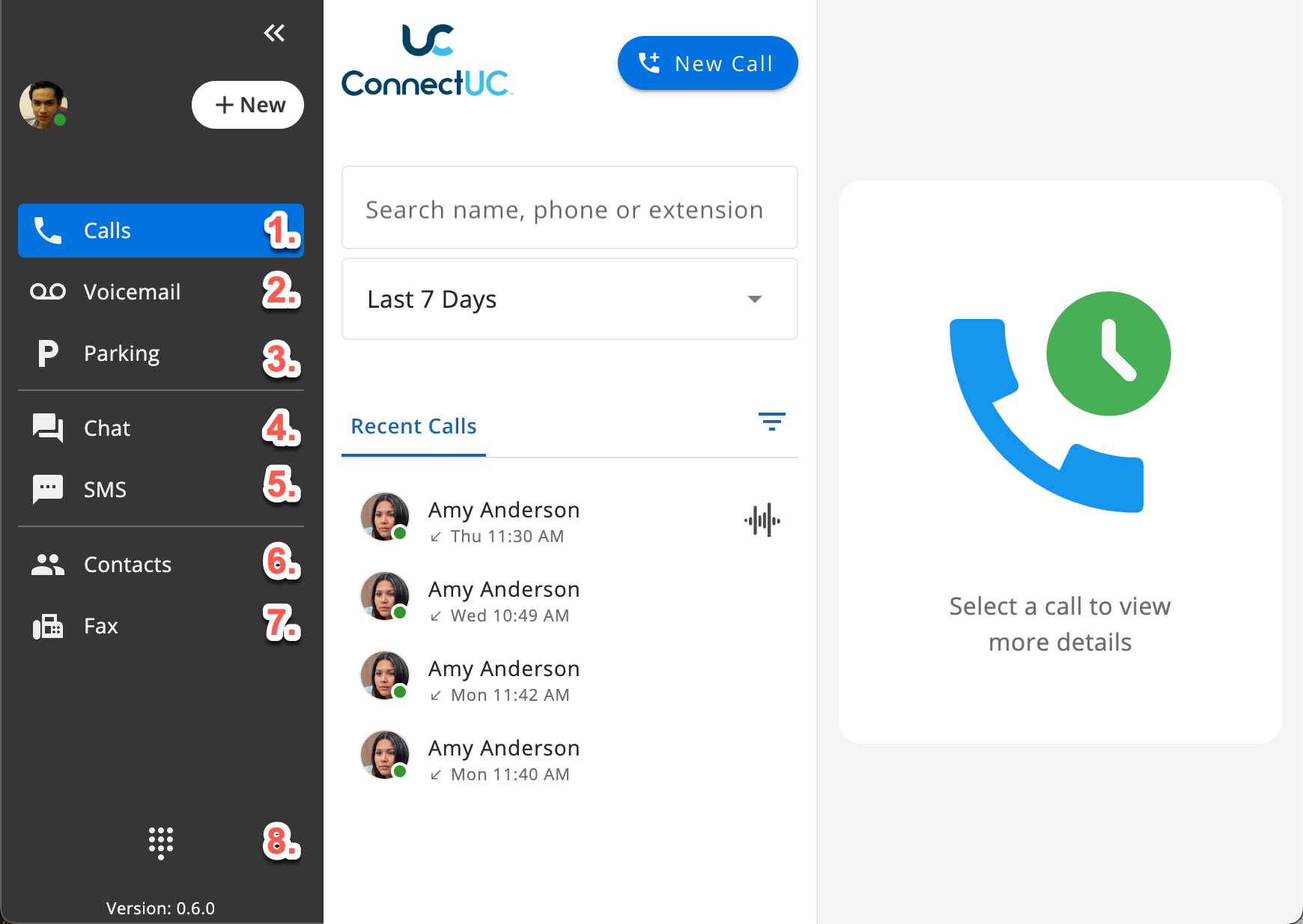
Please note that some features, such as SMS, Fax, and Voicemail Transcription must be enabled by an Administrator and may not appear for all users.
Calls
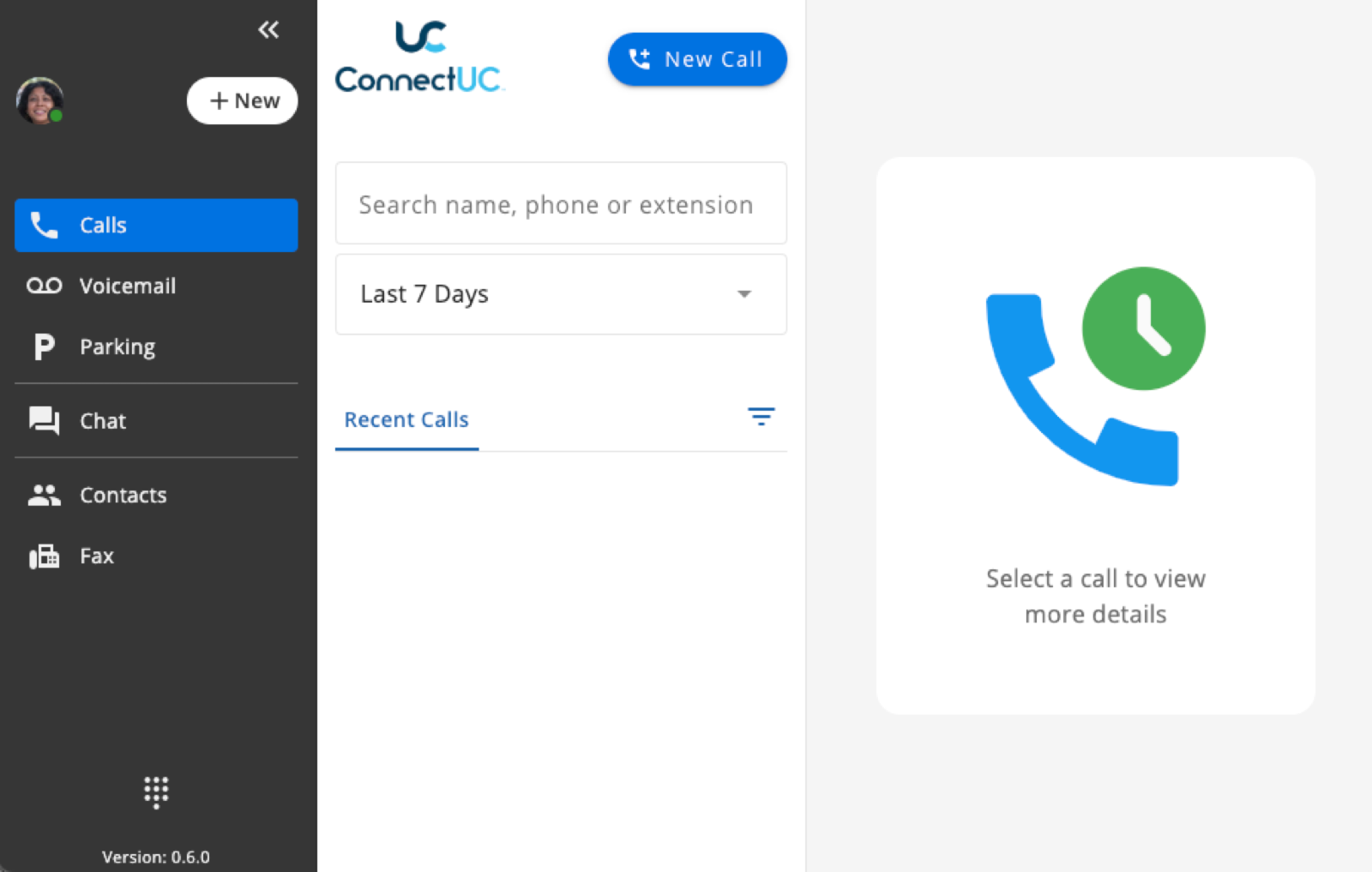
The Calls tab allows you to make a new call and view details for recent calls.
Voicemail
The Voicemail tab allows you to view, listen, download, and read transcripts for voicemails you have received. After clicking on an individual voicemail, you also have the option to call the number back within the app, forward the voicemail to another contact, or delete the voicemail.
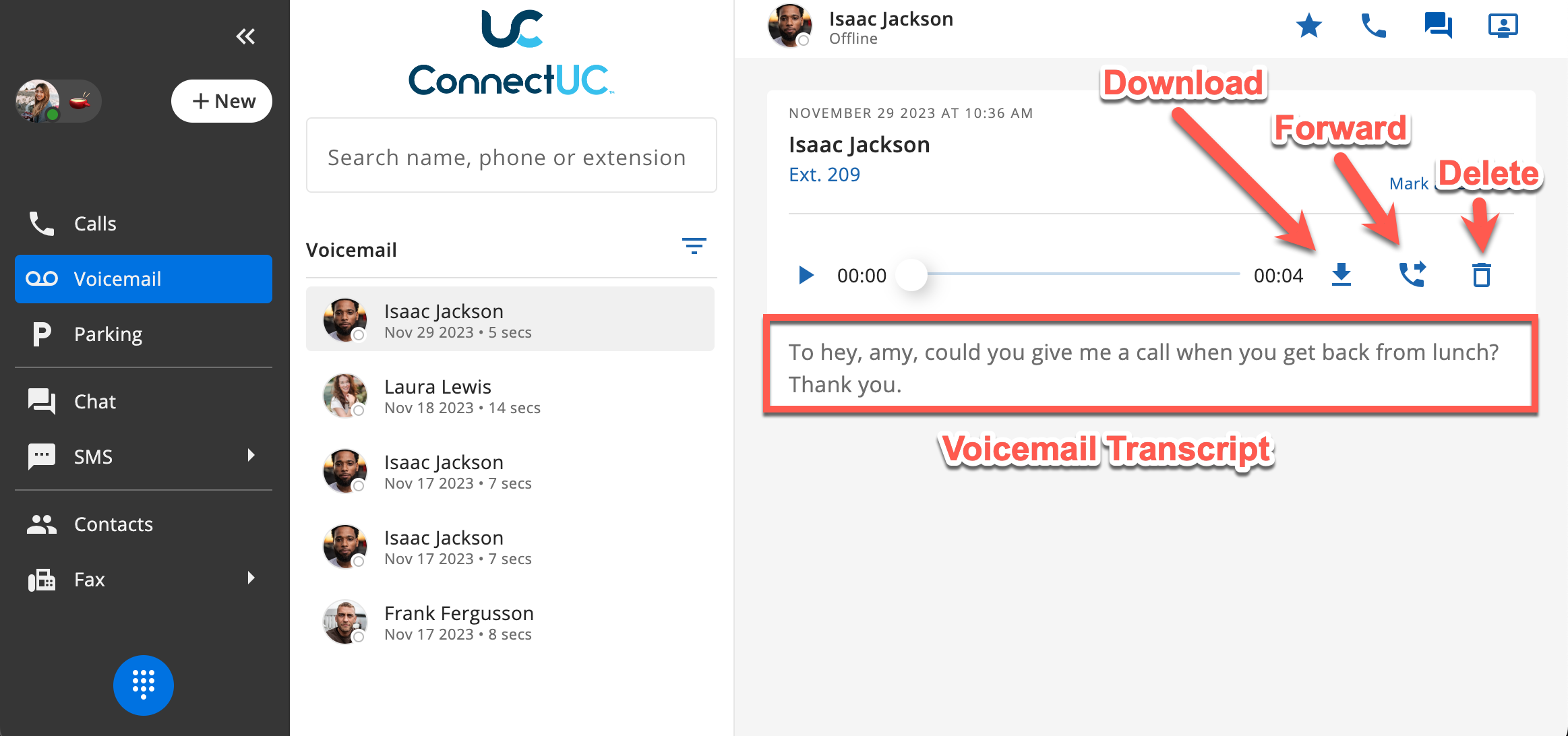
Once a new voicemail is received, a red number icon will appear in the voicemail tab. Once you have reviewed a voicemail in this tab, it will be “Marked as Read,” and the indicator will be removed. You may also mark a voicemail as Unread if you wish (pictured above on the top-right side of the page).

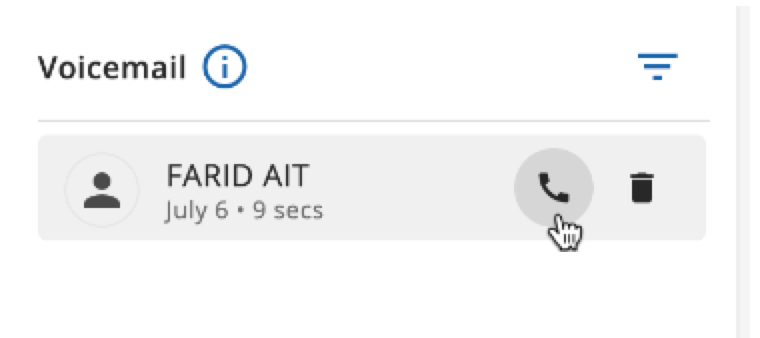
After clicking on an individual voicemail, you also have the option to call the number back within the app or delete the voicemail.
To call the voicemail number back from within the Voicemail tab, simply hover your mouse over the voicemail entry and click the “Phone” icon.
Parking
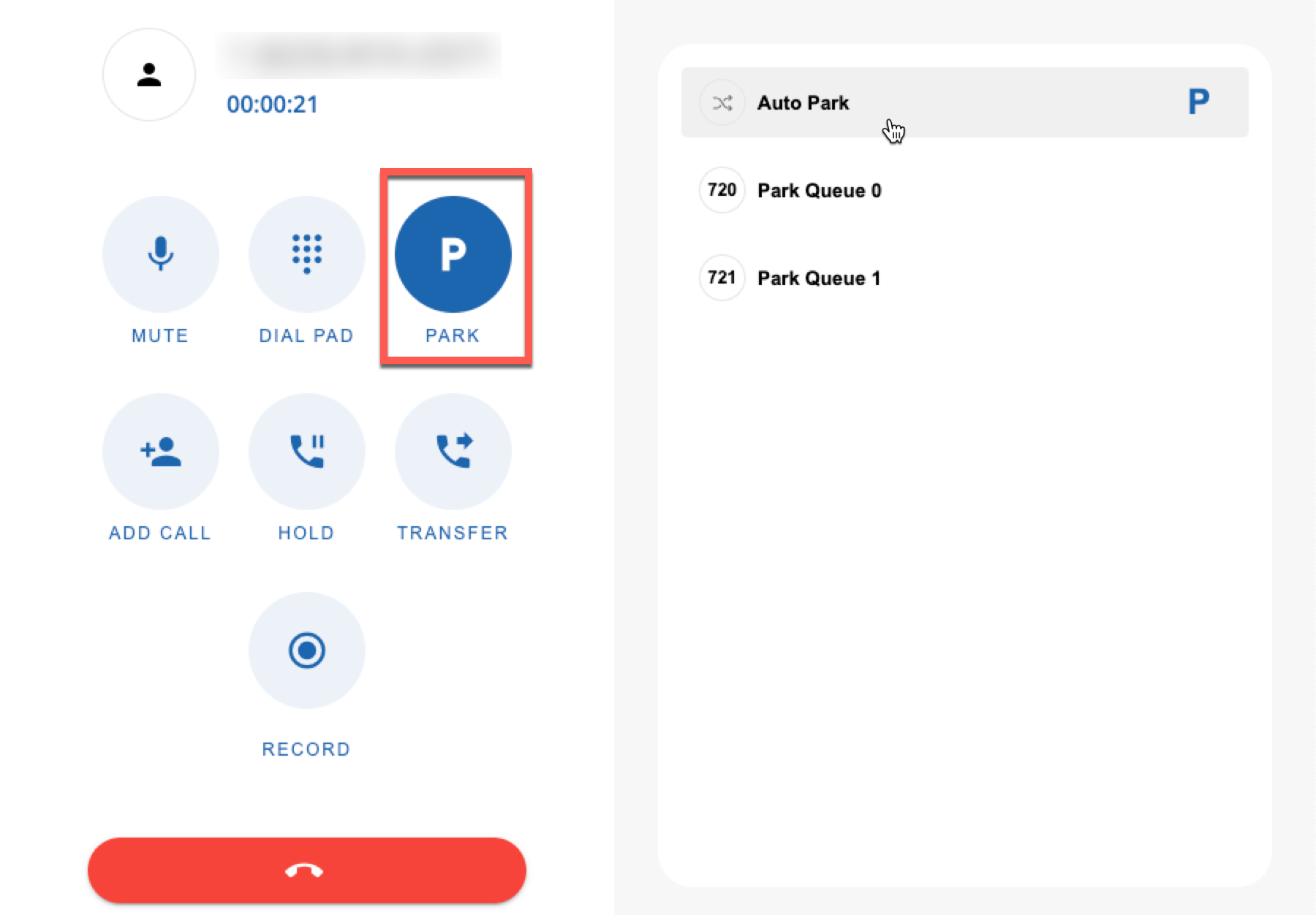
The Parking tab allows you to view a list of Parked Calls.
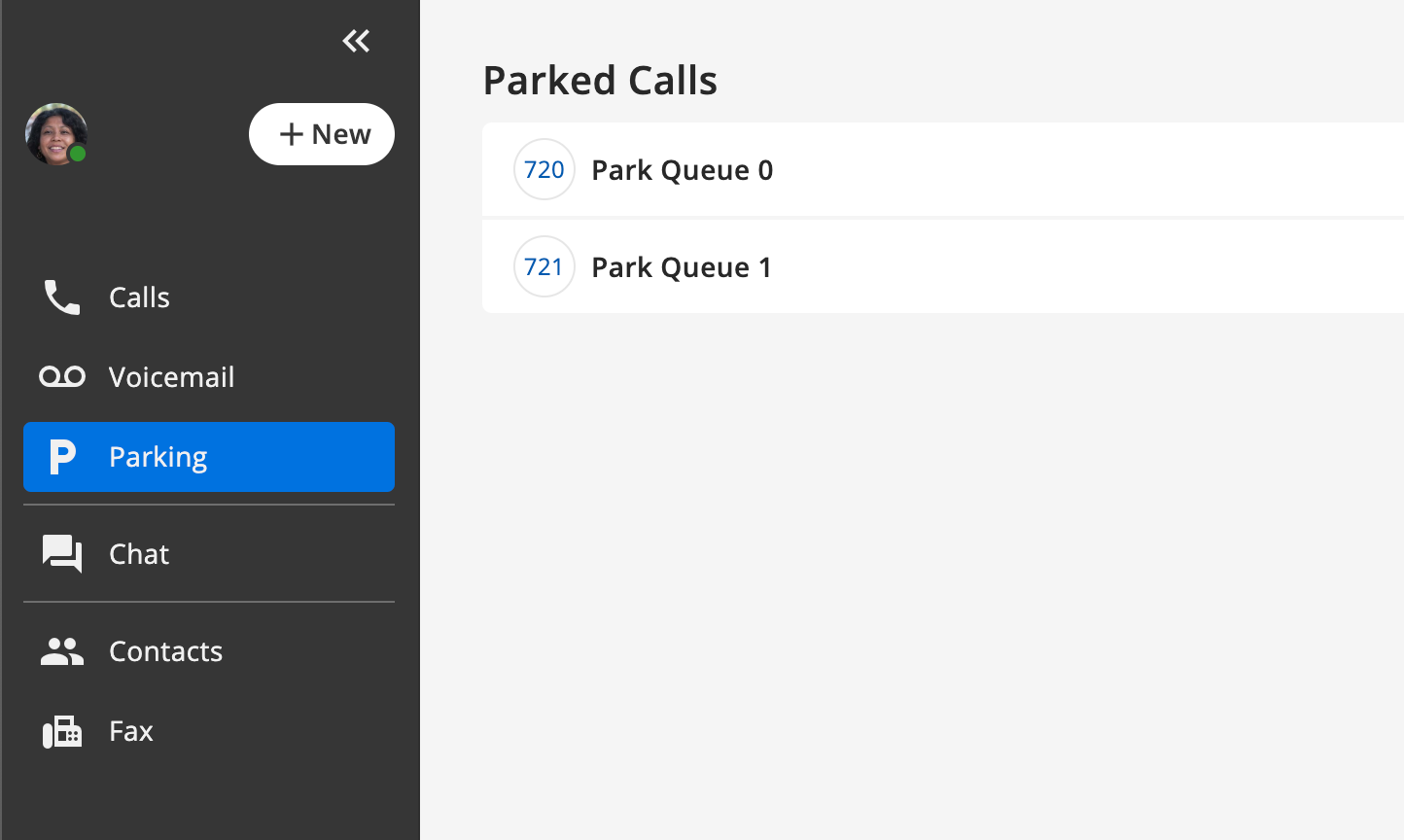
Calls are parked by clicking the 'Park' button during an active call.
Chat
The Chat tab allows you to view and manage chat conversations, create new chat conversations, and call or video conference.
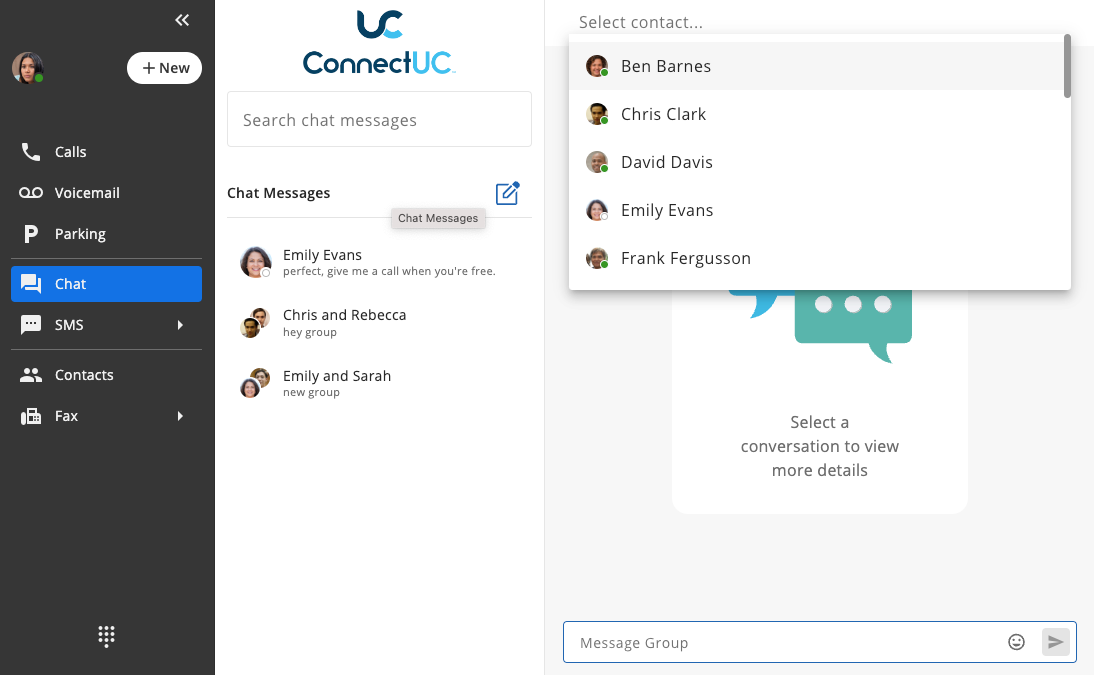
Similar to the Voicemail tab, new chat messages/conversations will trigger a red number icon to indicate the number of unread messages.

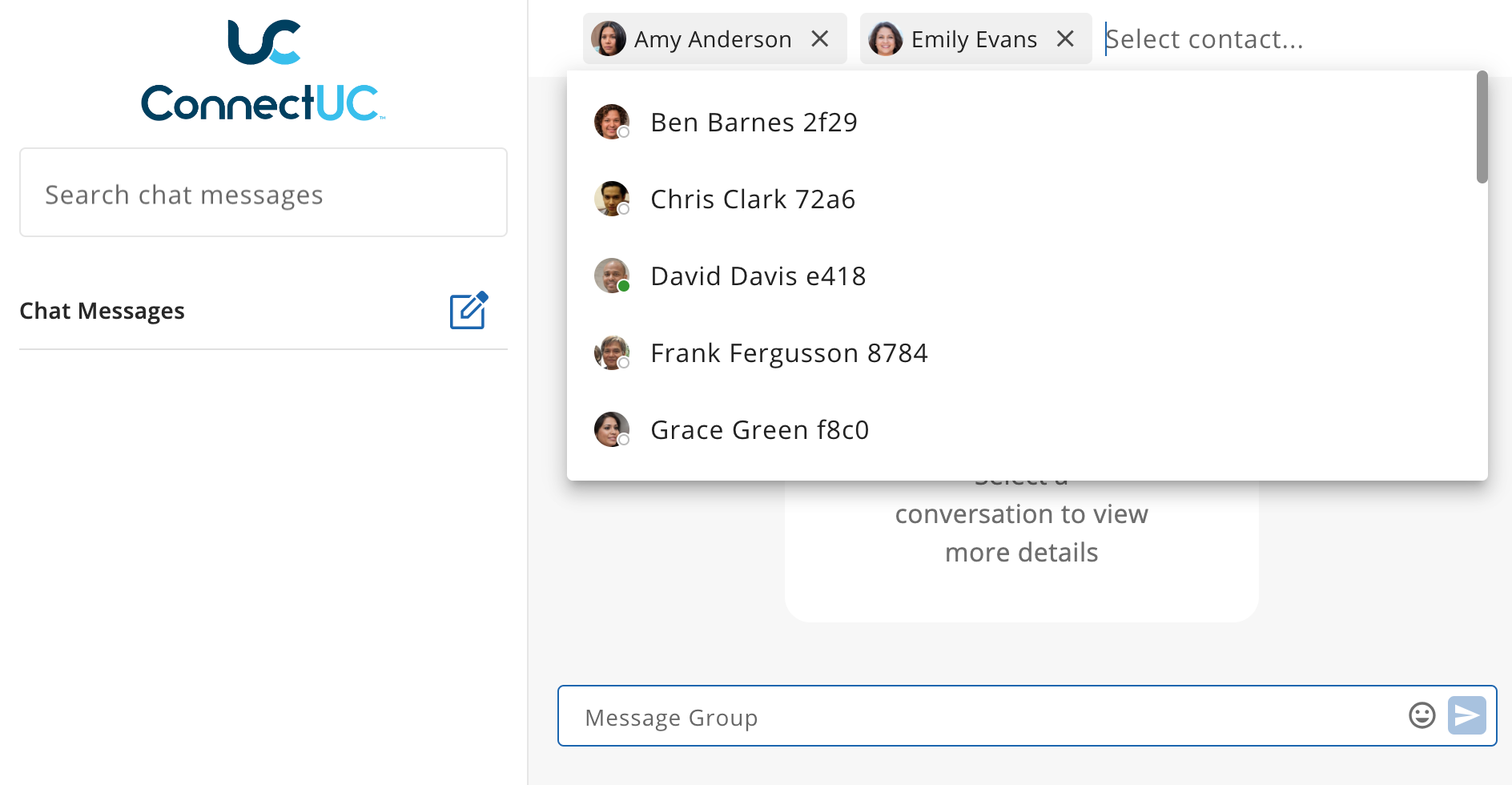
To start a new chat conversation, simply select an existing contact from the ‘Select contact …' menu at the top of the page and type or select the contact(s) you wish to include. Once the contact(s) has been selected, type the message at the bottom of the page to begin the conversation.
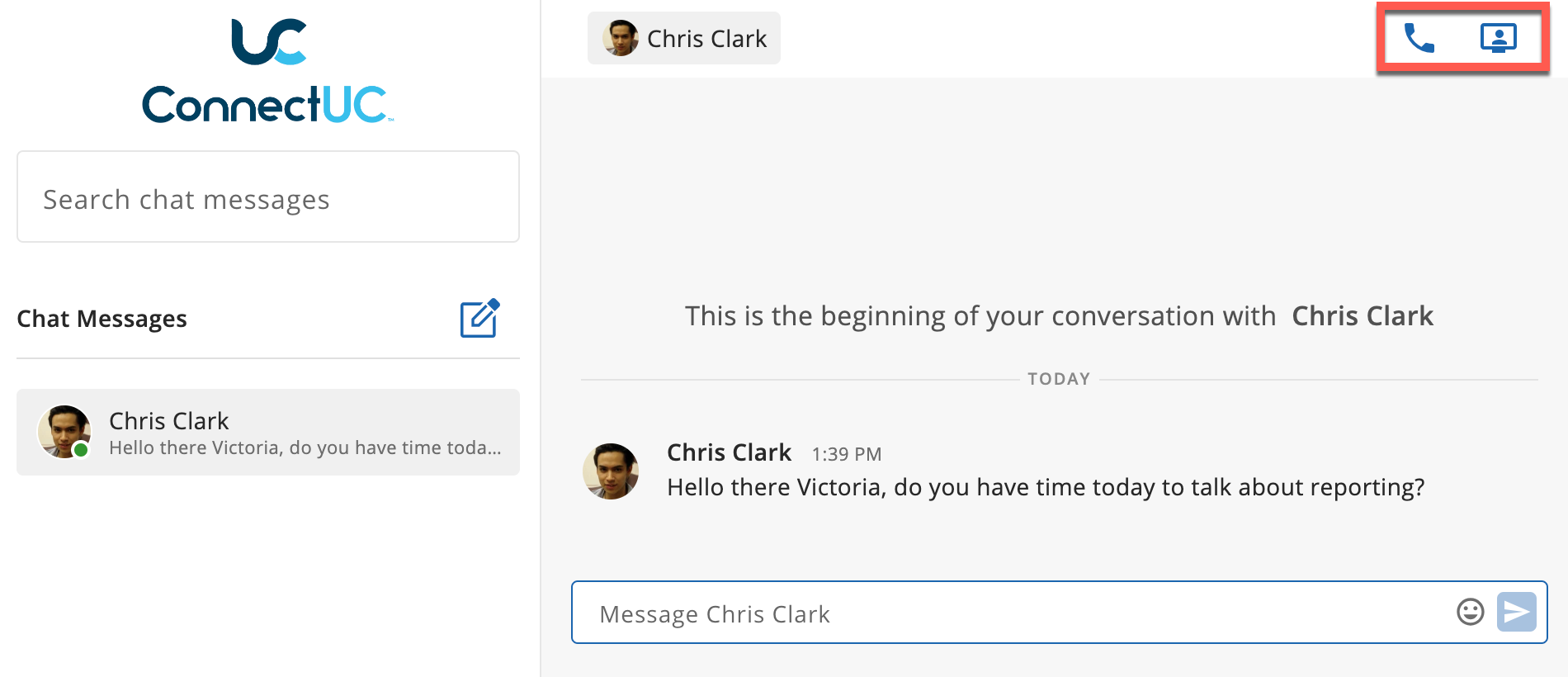
Once you select a conversation, you can call the contact directly or initiate a video call by utilizing the appropriate icons found in the top-right-hand corner of the screen.
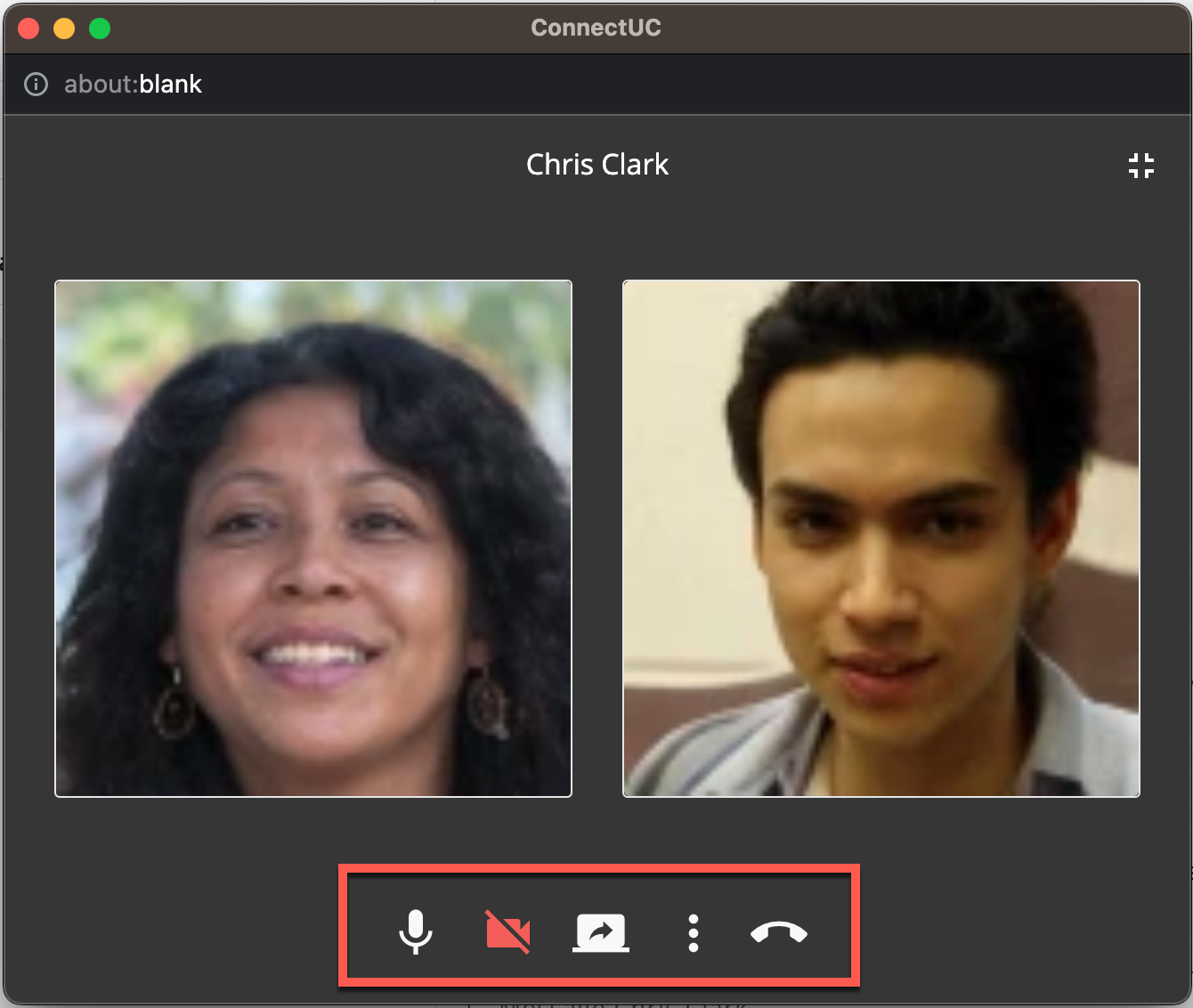
If you initiate a video call, you can control your video, audio, and screen-sharing options via the active video call window that will pop up in a separate window.
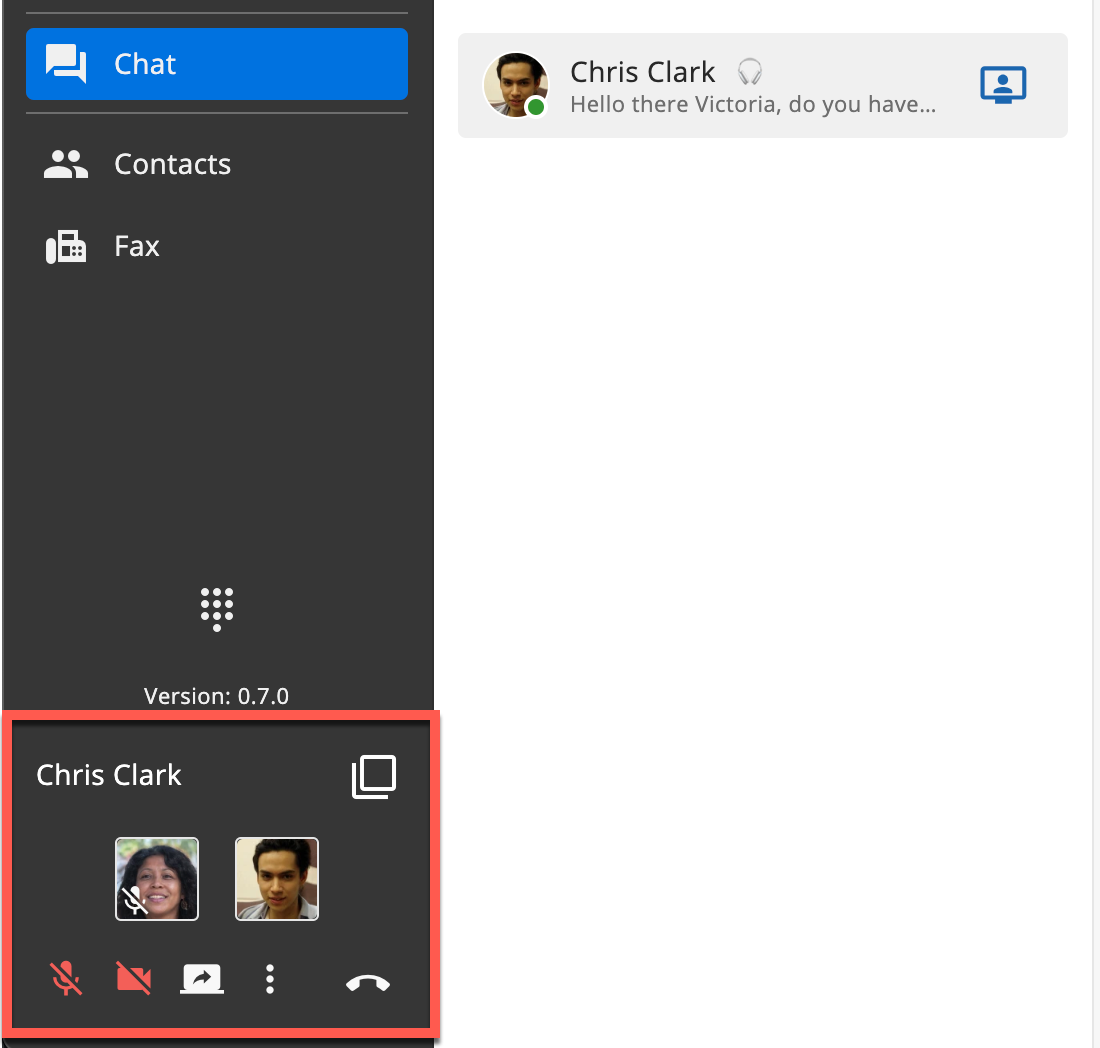
If you close this separate window, you can still manage your call audio/video options via the menu found at the bottom left side of the screen.
SMS
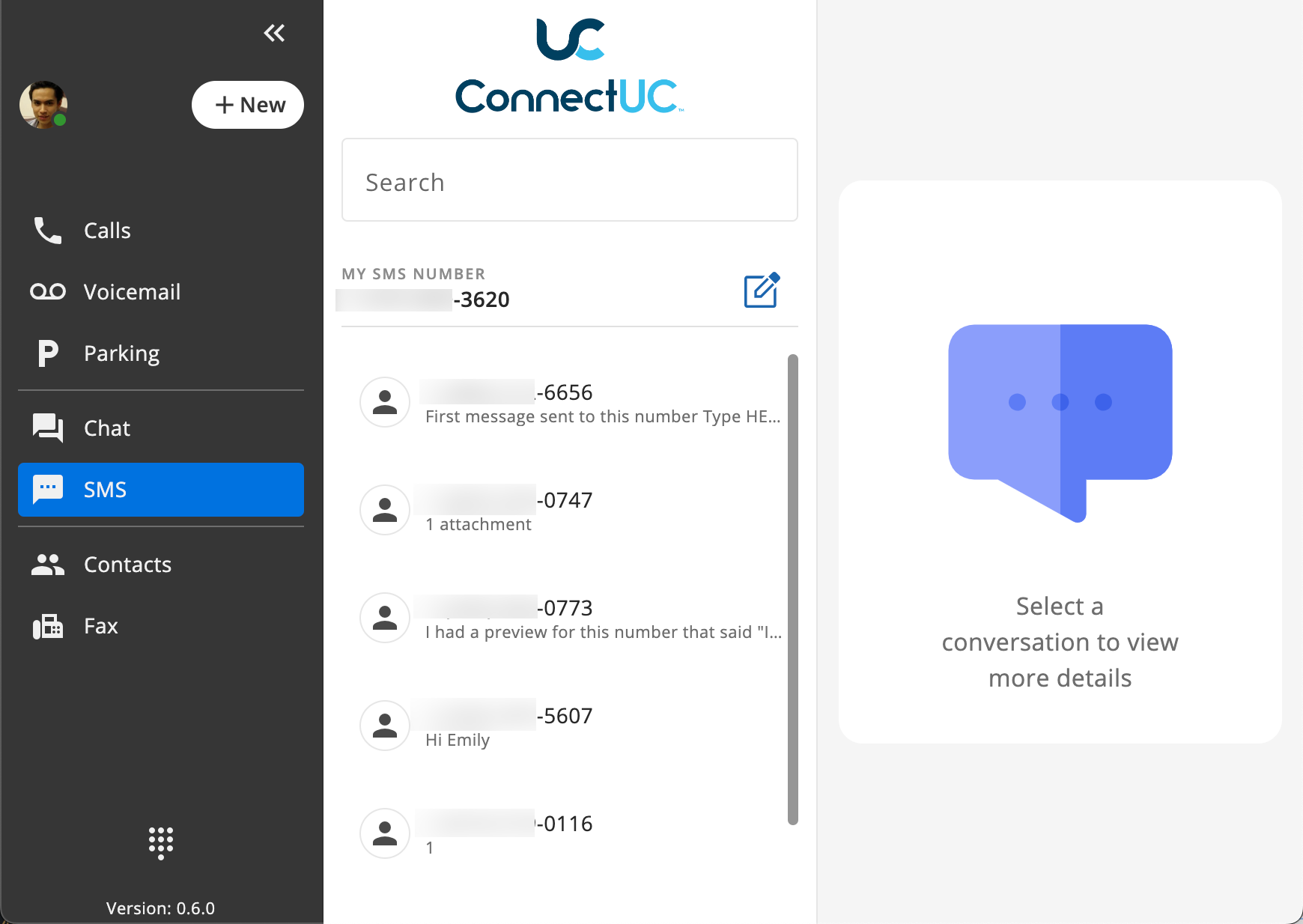
The SMS tab allows you to create, view, and manage SMS conversations.
Selecting an existing SMS conversation from the list on the left-side menu allows you to view the message history and reply with new messages. You may also call the selected number by clicking the 'Phone' icon at the top right-hand side of the page.
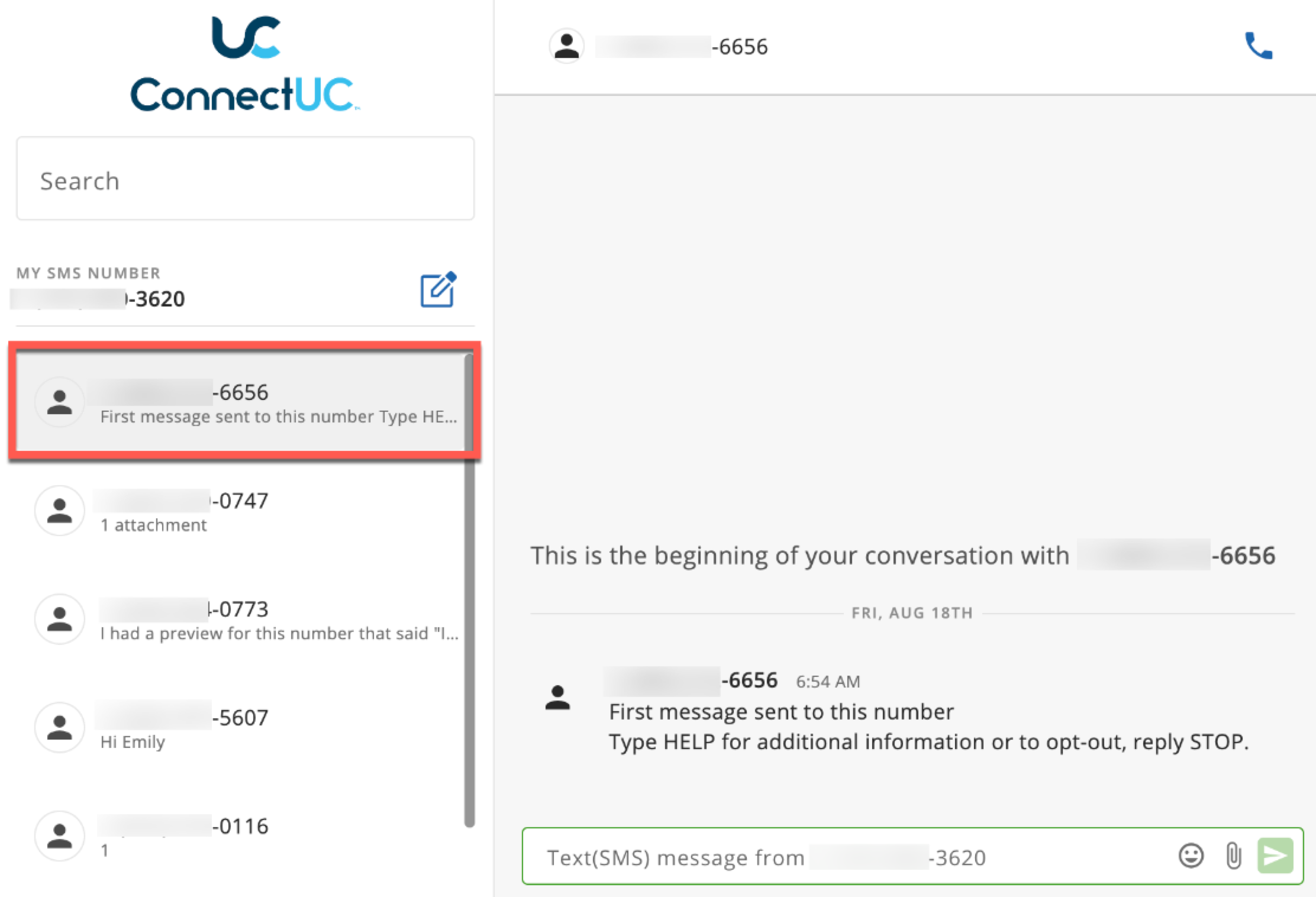
A user may confirm their outbound SMS number by looking under the 'My SMS Number' section at the top of the left-side menu or by viewing it when sending an outbound SMS.
Users may include Emojis or file attachments by clicking the appropriate icons to the right of the outbound SMS box.

Contacts
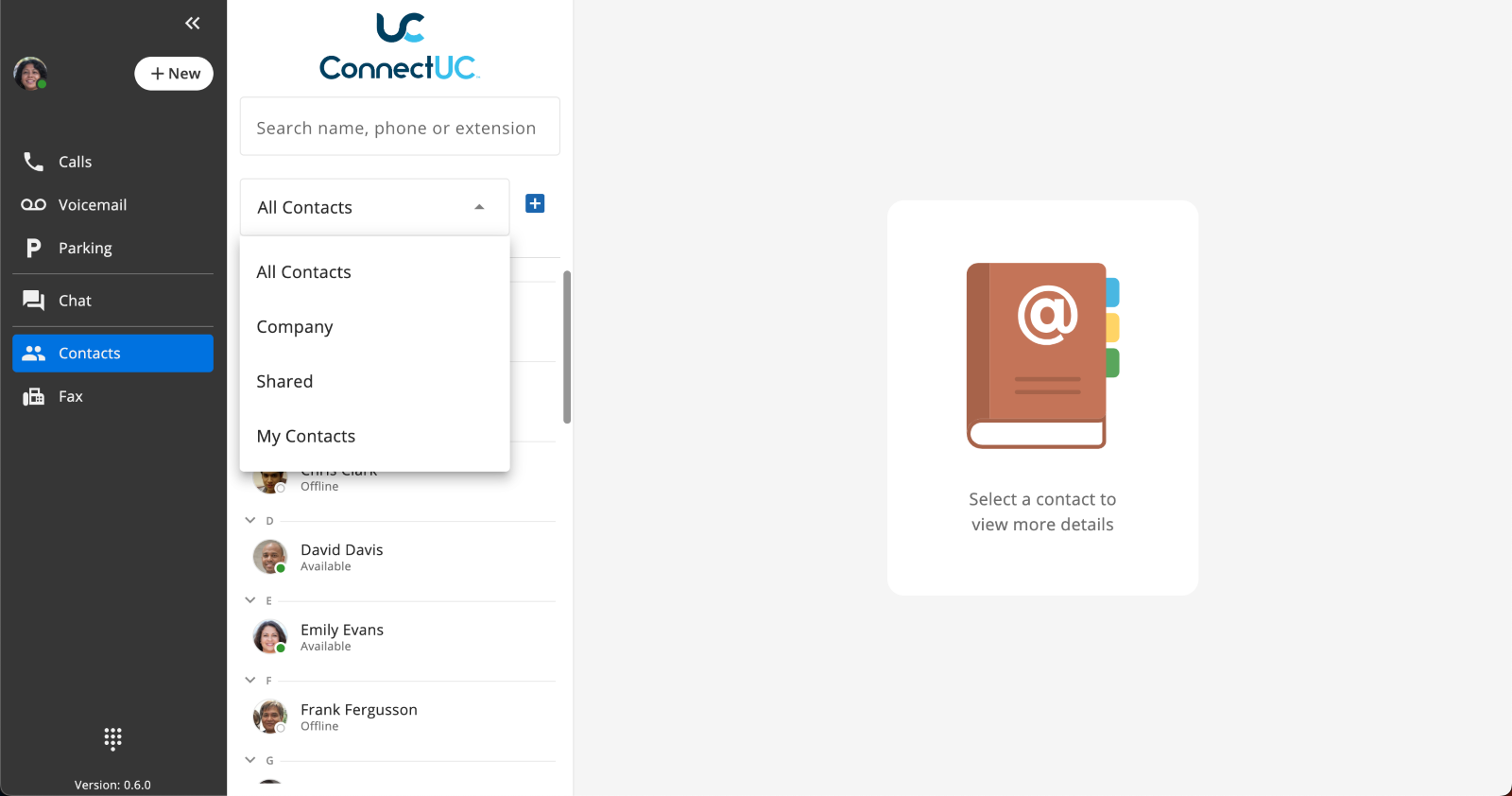
The Contacts tab allows you to view, create, and manage all of your ConnectUC contacts.
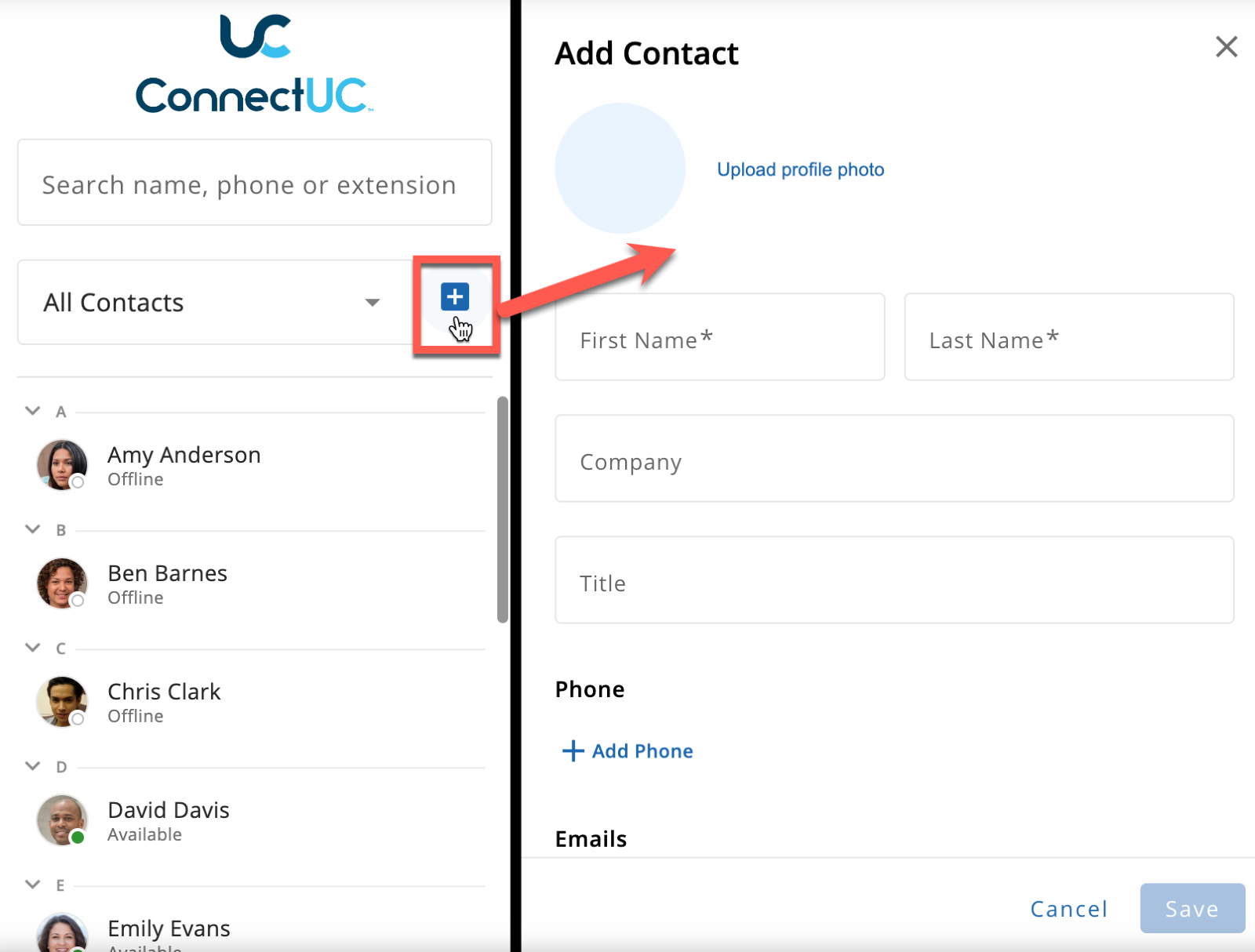
To add a new contact, click the ‘+’ button to the right of the contacts selection menu, and you will be able to supply all info, including a profile picture and other contact info.
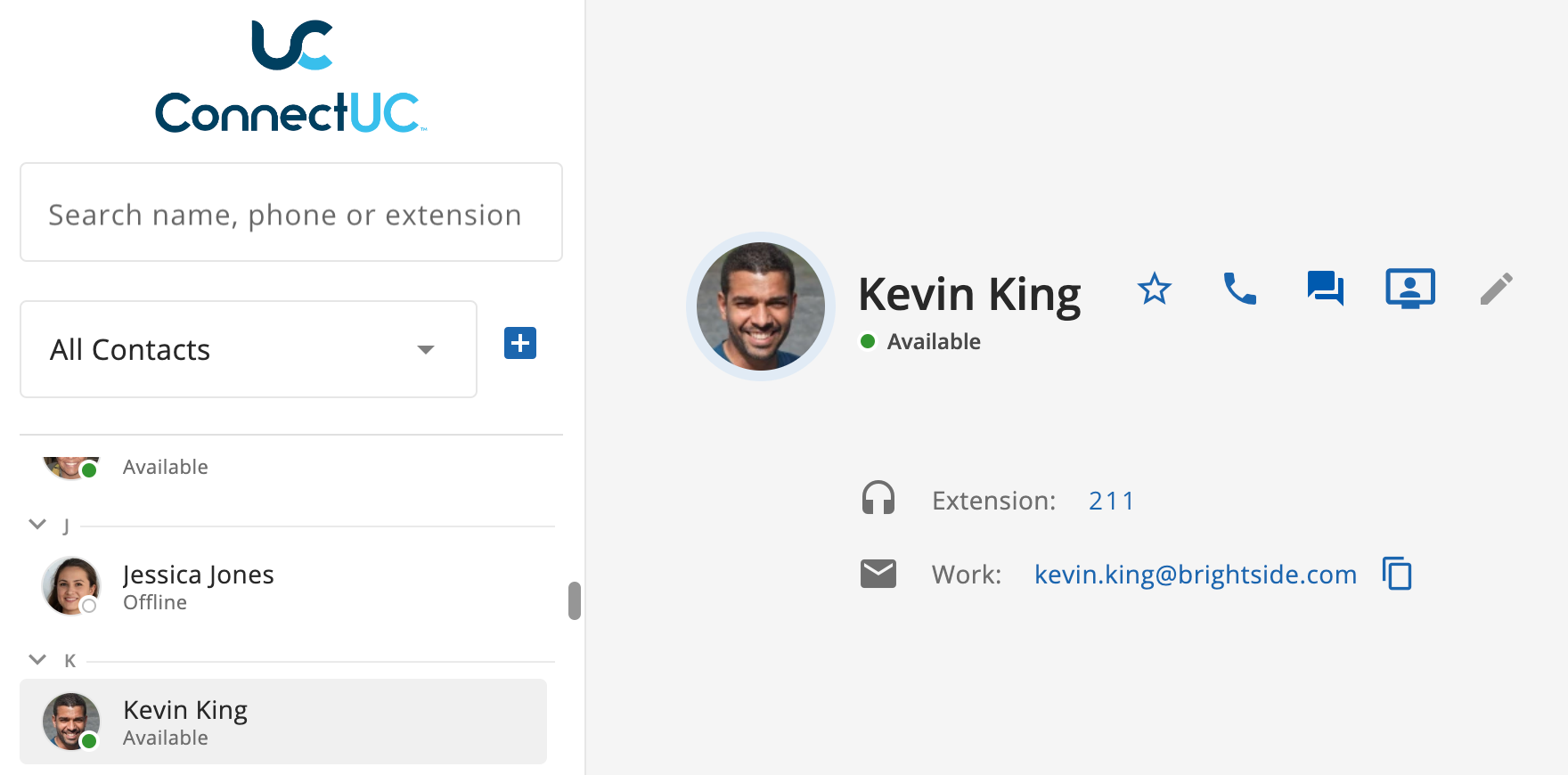
When viewing an individual contact, you can view information such as their availability status, extension, and other contact info. Additionaly, you may call, chat, or video call the contact from the options found on the top right side of the screen. Lastly, you can add contacts to your ‘Favorites’ list by clicking the star icon found to the right of their name.
Fax
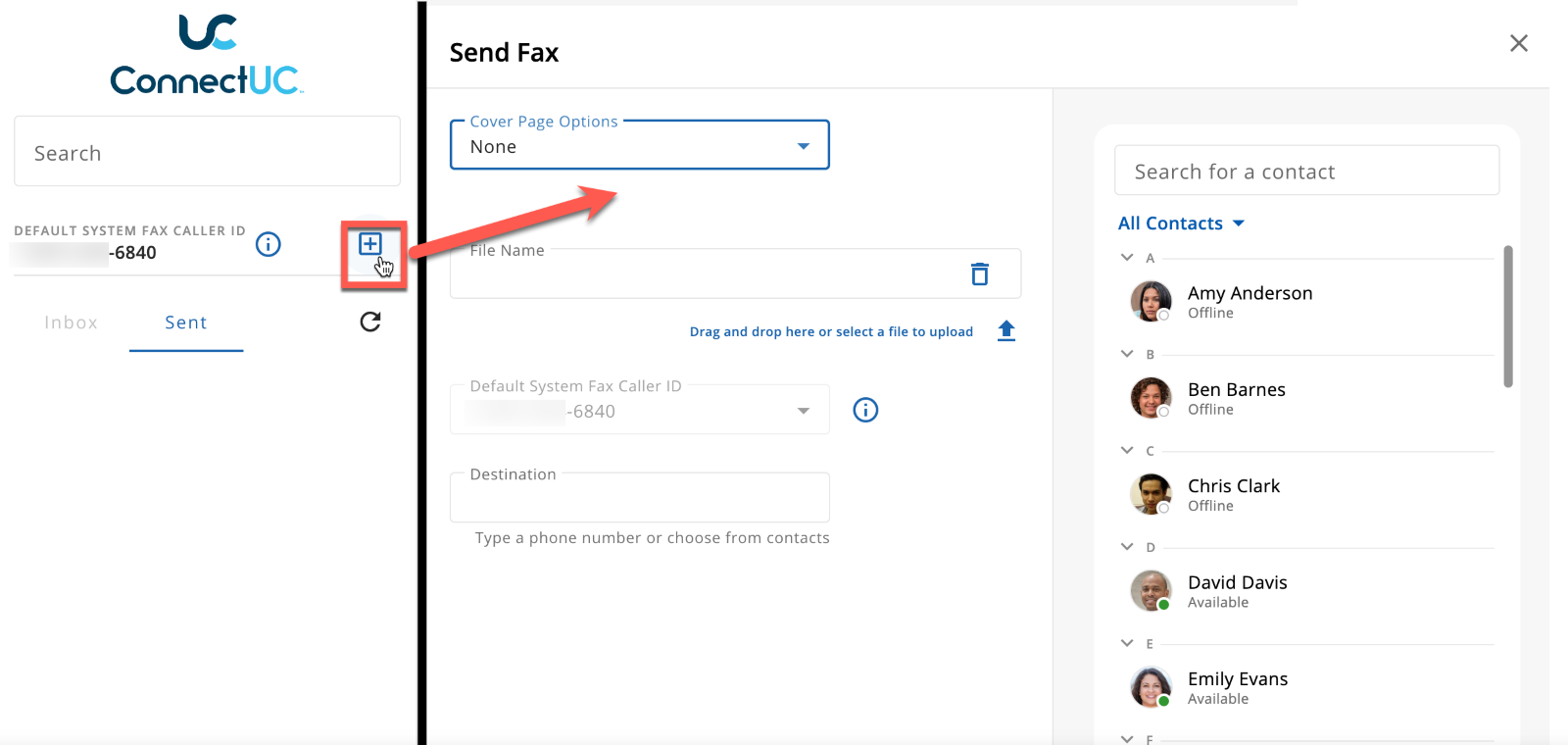
The Fax tab allows you to send faxes and also view inbound and outbound faxes.
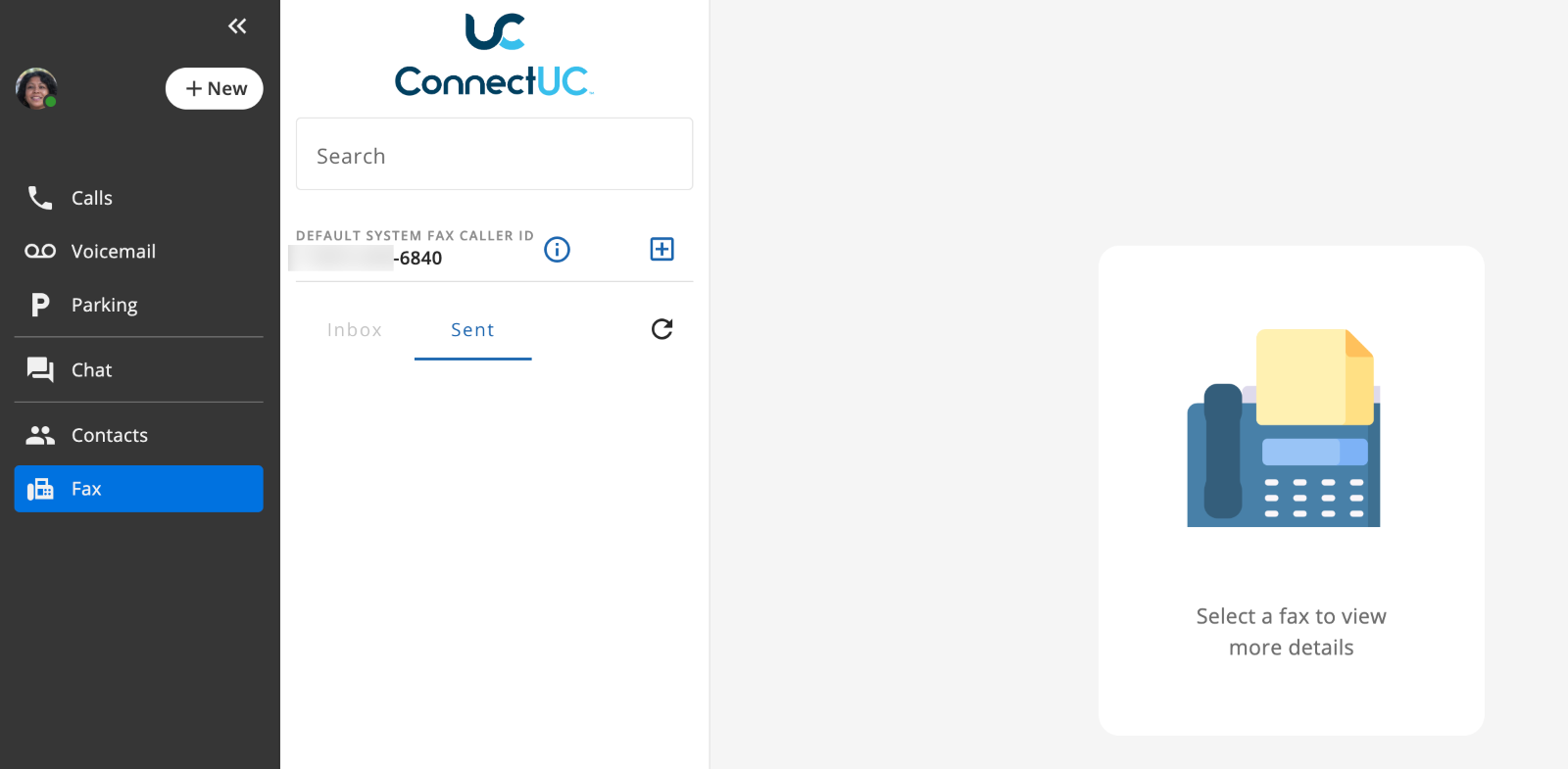
To send a new fax, click the ‘+’ button to the right of the Fax Caller ID and you will be able to modify cover page options, caller ID, file attachment(s), and the destination number.
Dialer
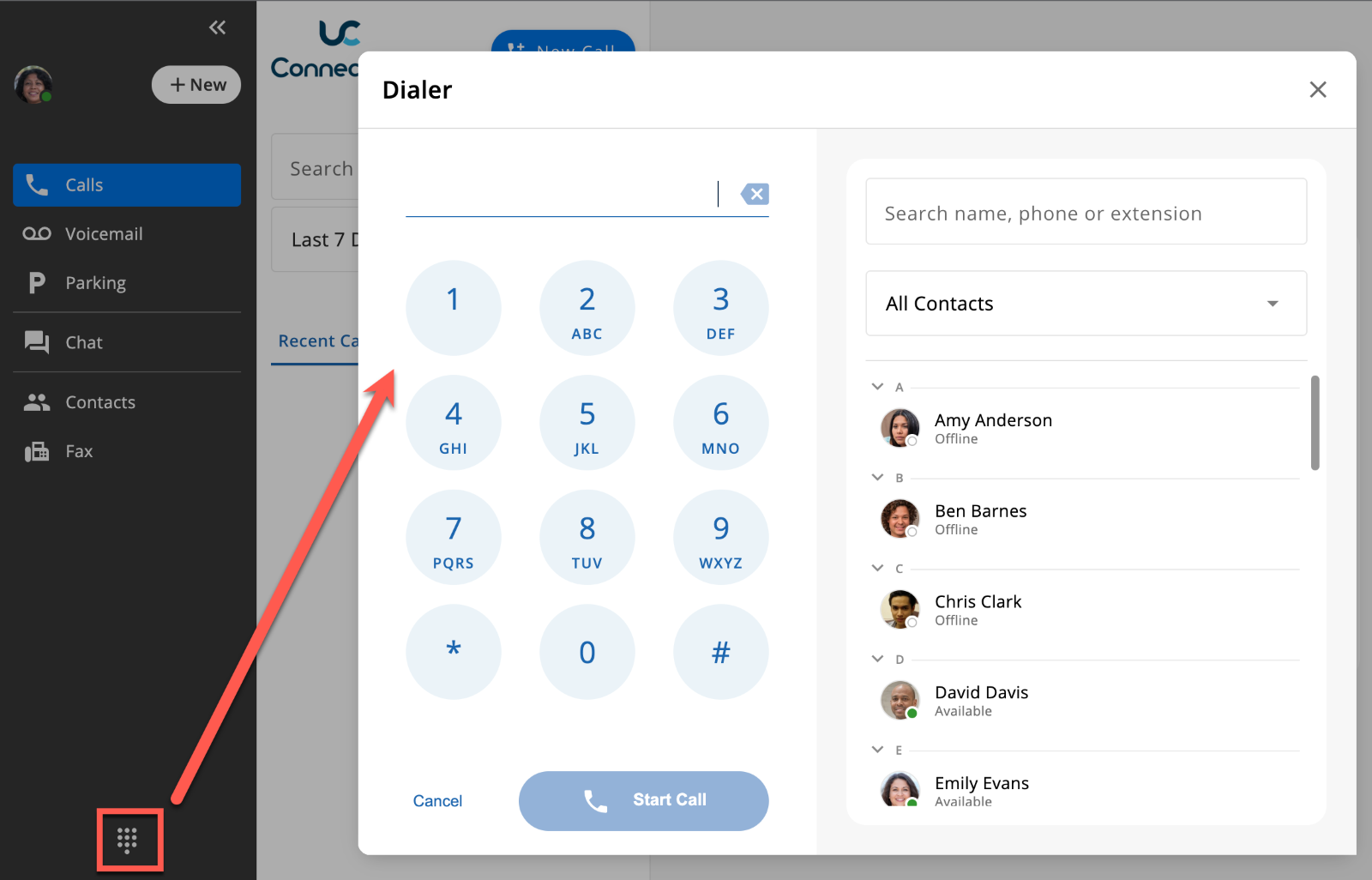
The dialer option found at the bottom left side of the page allows you to use a dial pad for making outbound calls. Additionally, you can also search and call existing contacts from the dialer menu.