

ConnectUC’s Report an Issue feature allows users to report any issues relating to their ConnectUC experience.
Before reporting an issue in ConnectUC, please be sure to visit our ConnectUC FAQs page, as it includes solutions to some common issues.
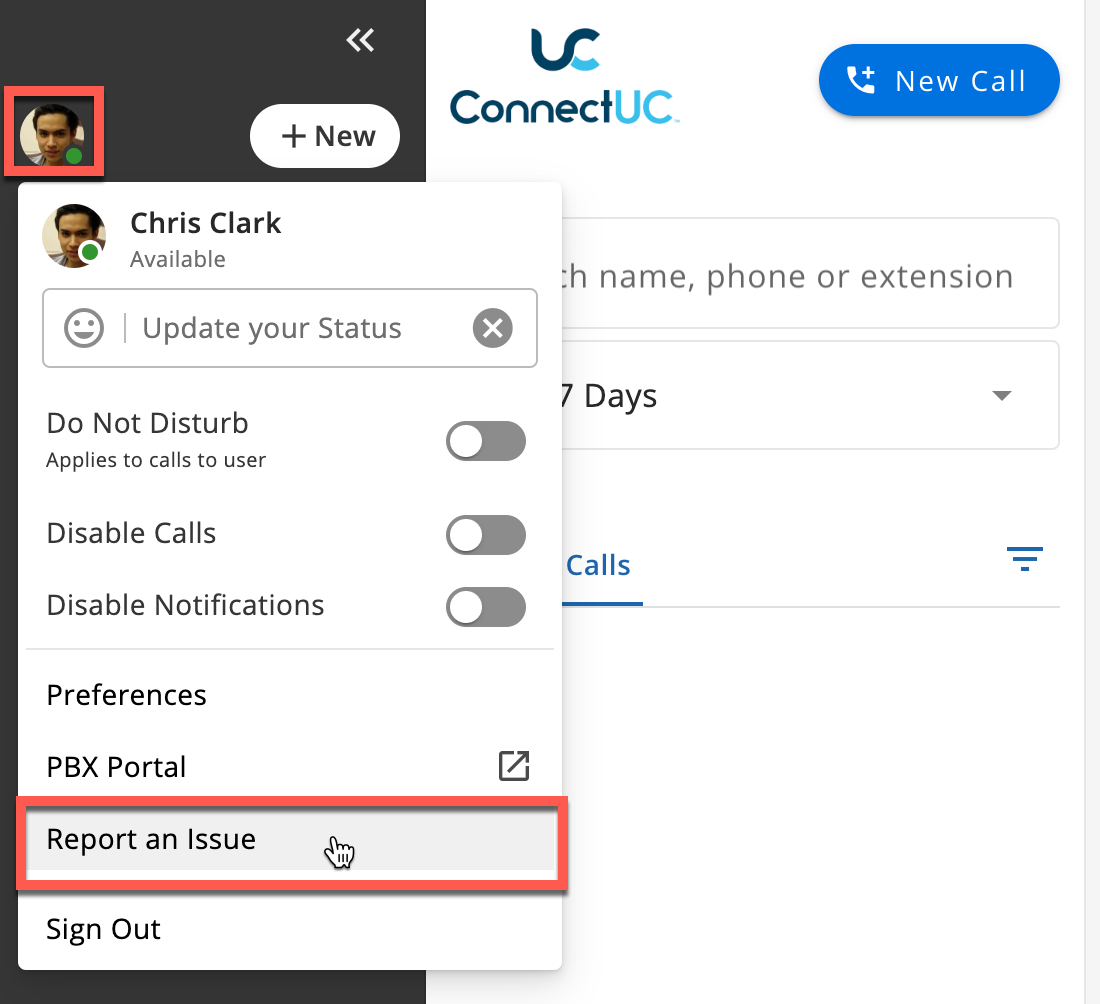
To report an issue within ConnectUC, click your user image on the left-side menu and then click the ‘Report an Issue’ button from the options listed below.
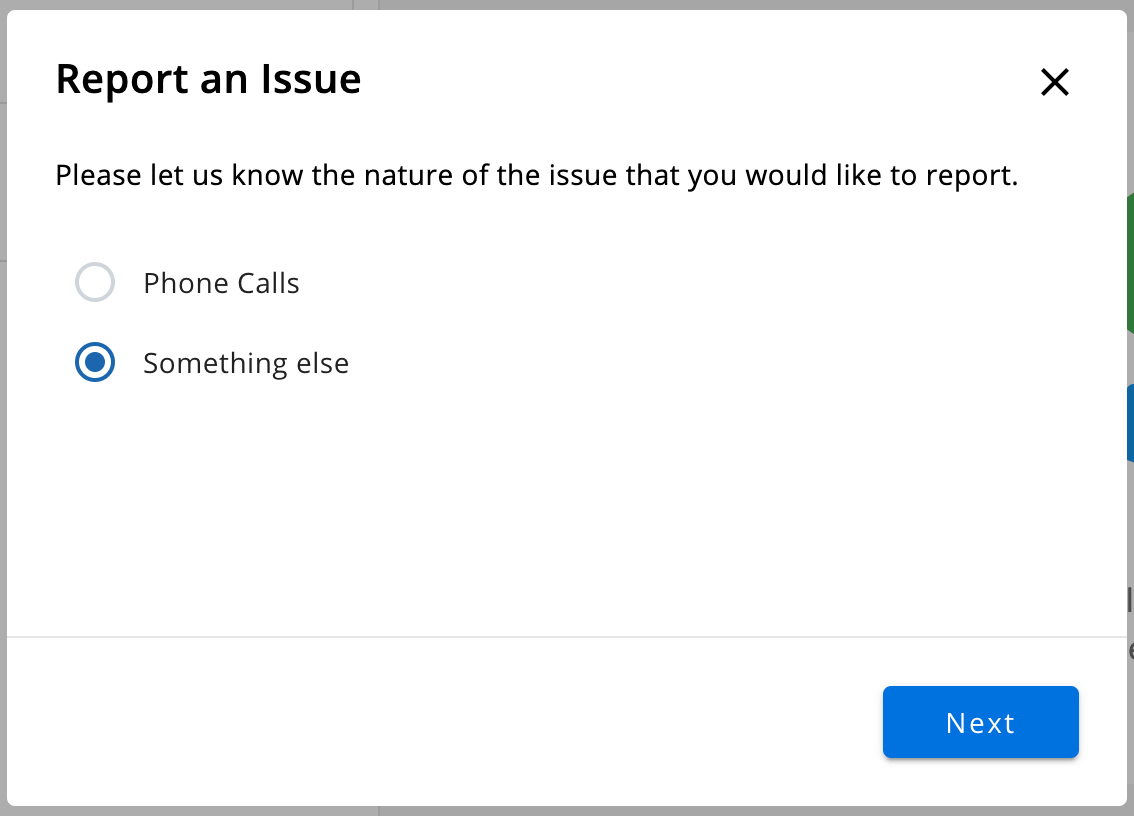
Once selected, you will be prompted to choose the type of issue you wish to report.
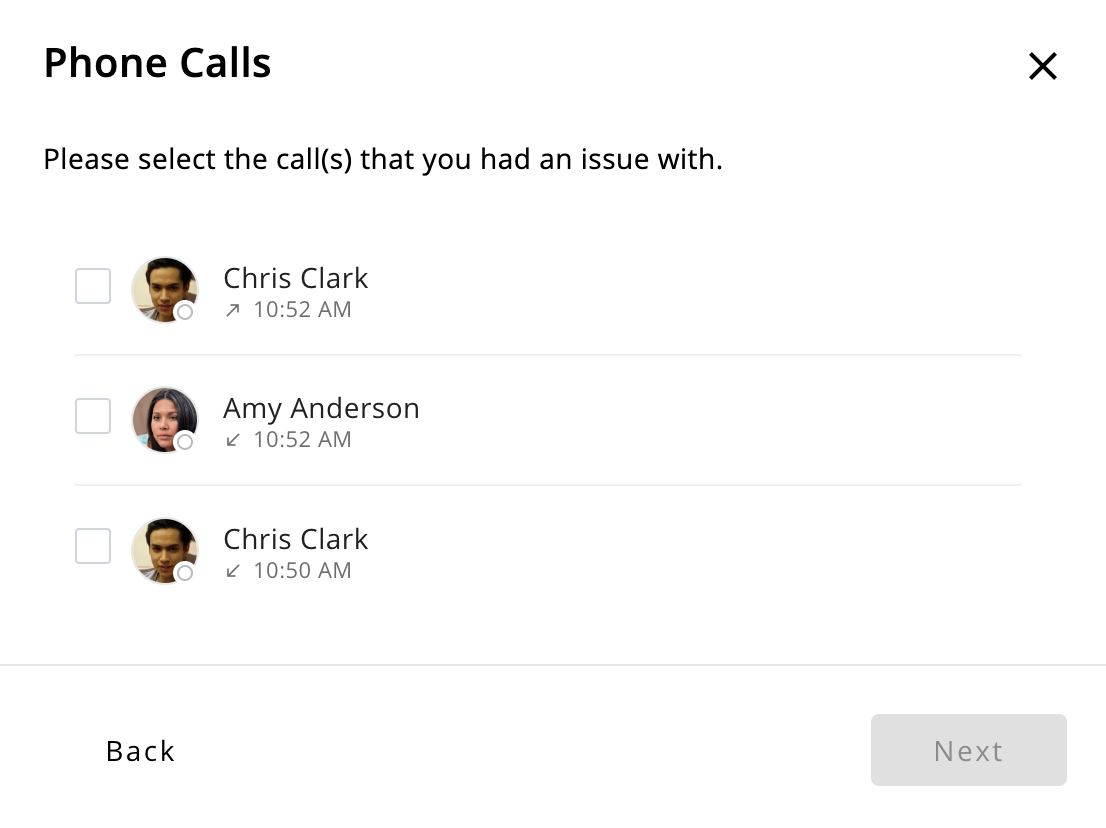
If the ‘Phone Calls’ option is selected, you will be able to select one or more calls from a list of recent interactions that are related to the issue you are reporting.
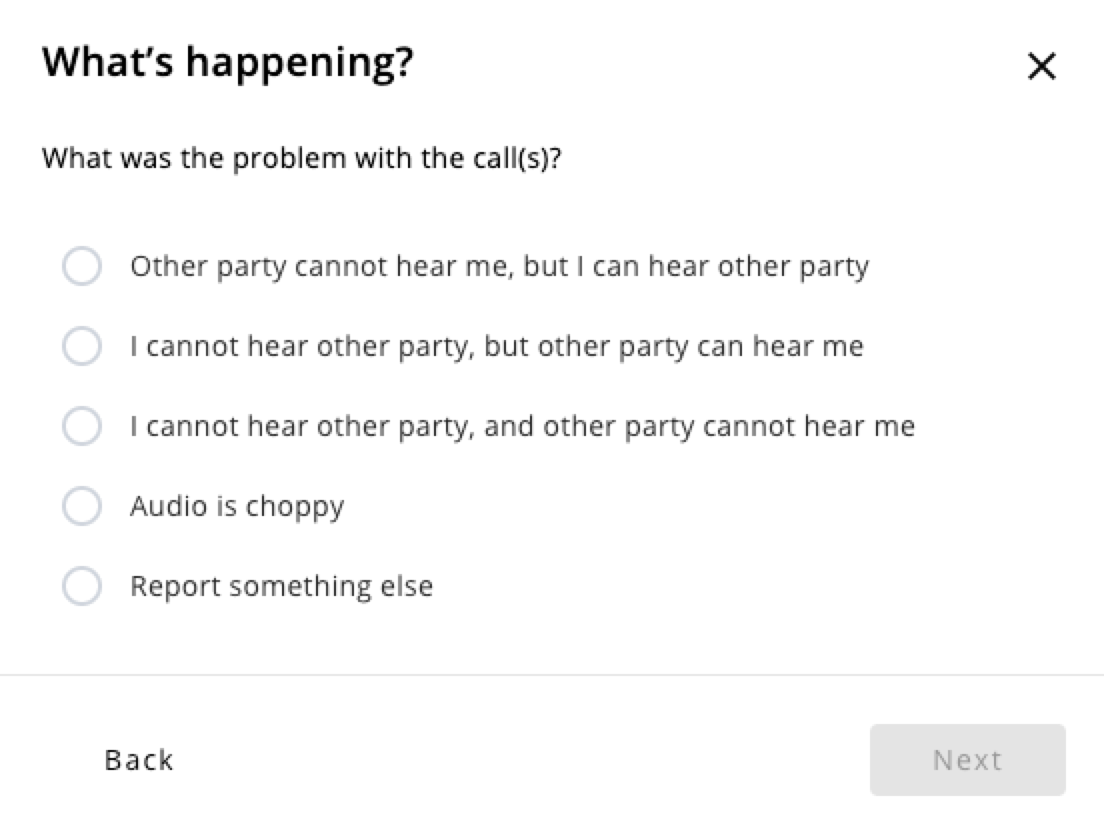
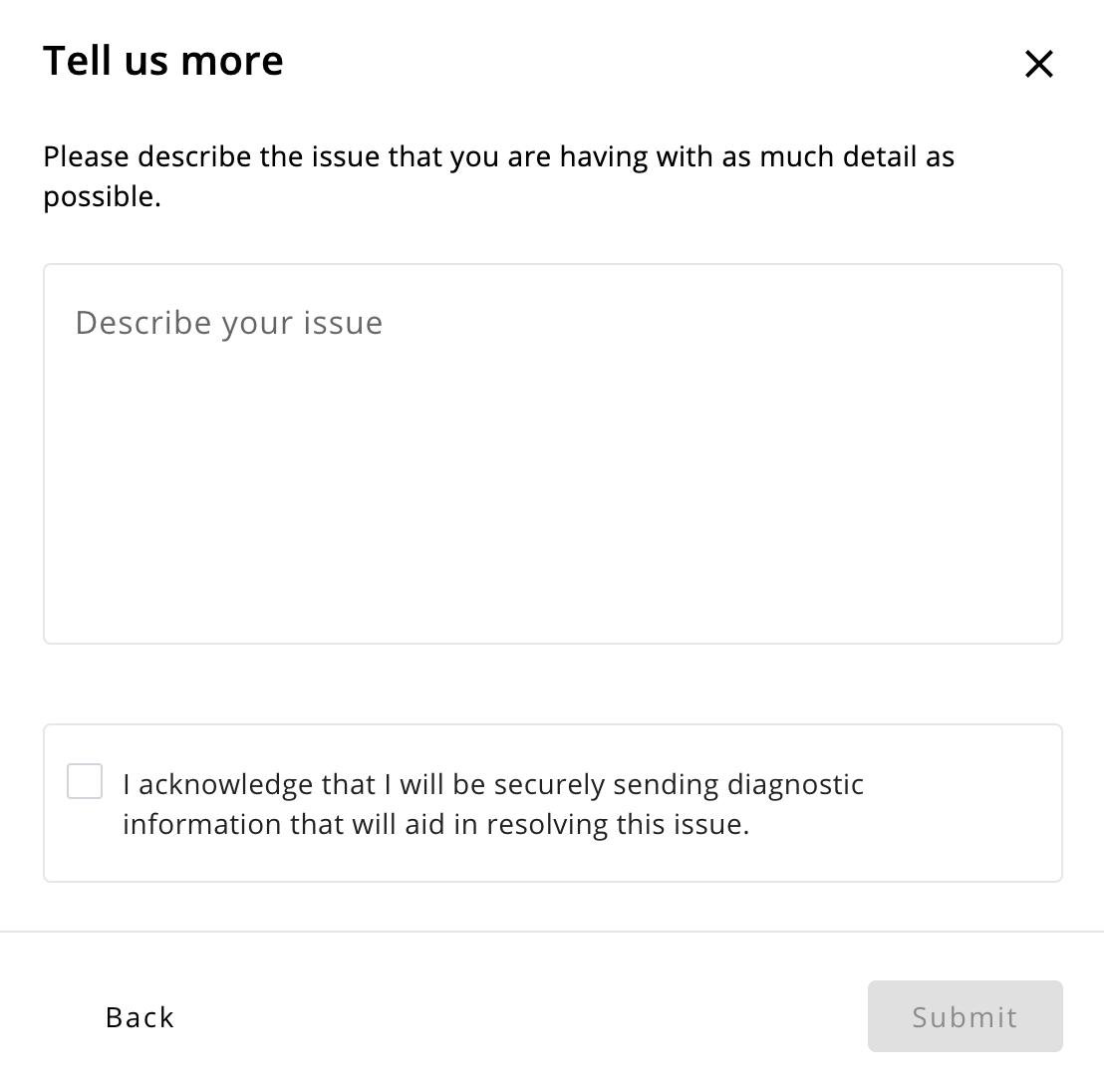
After selecting one or more calls from the list, you will then be asked to confirm more details about the issue occurring on the call(s). If you do not see your issue listed, you may instead choose ‘Report something else’, and you can explain the issue in a text form. Additionally, you will be asked to acknowledge sending diagnostic data for troubleshooting purposes.
If the ‘Something else’ option is selected, you will instead be prompted to describe your issue within a text box. Additionally, you will be asked to acknowledge sending diagnostic data for troubleshooting purposes.
Once submitted, the issue will be reported to the user's Telecom Partner support team via email.