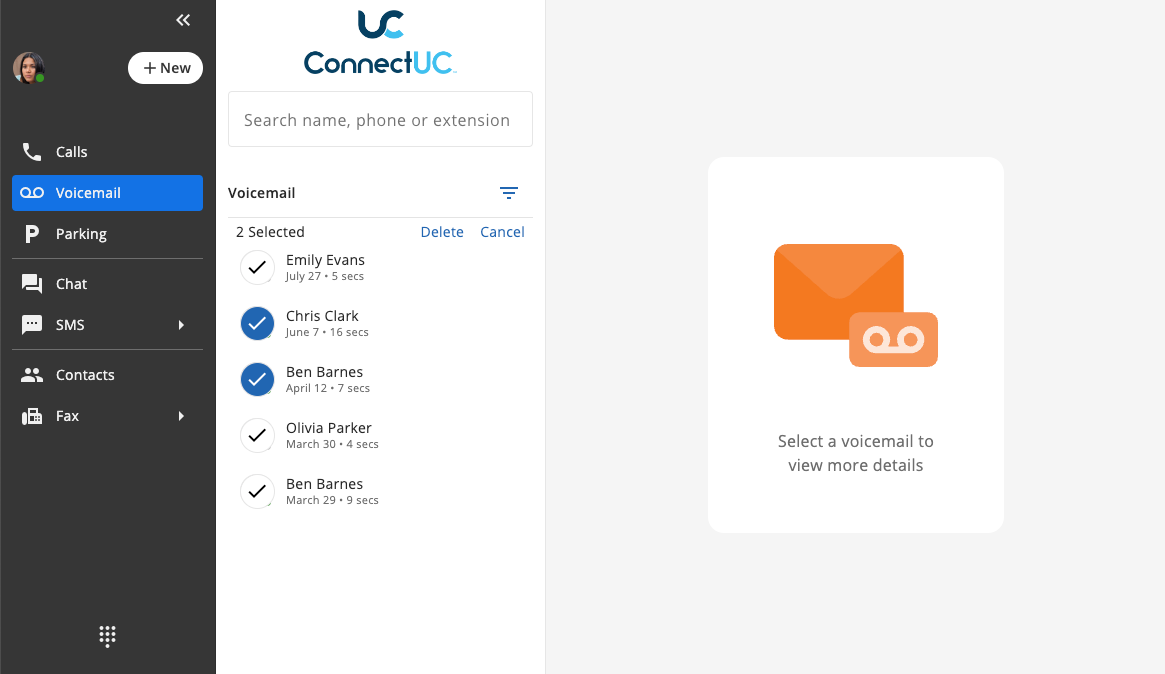

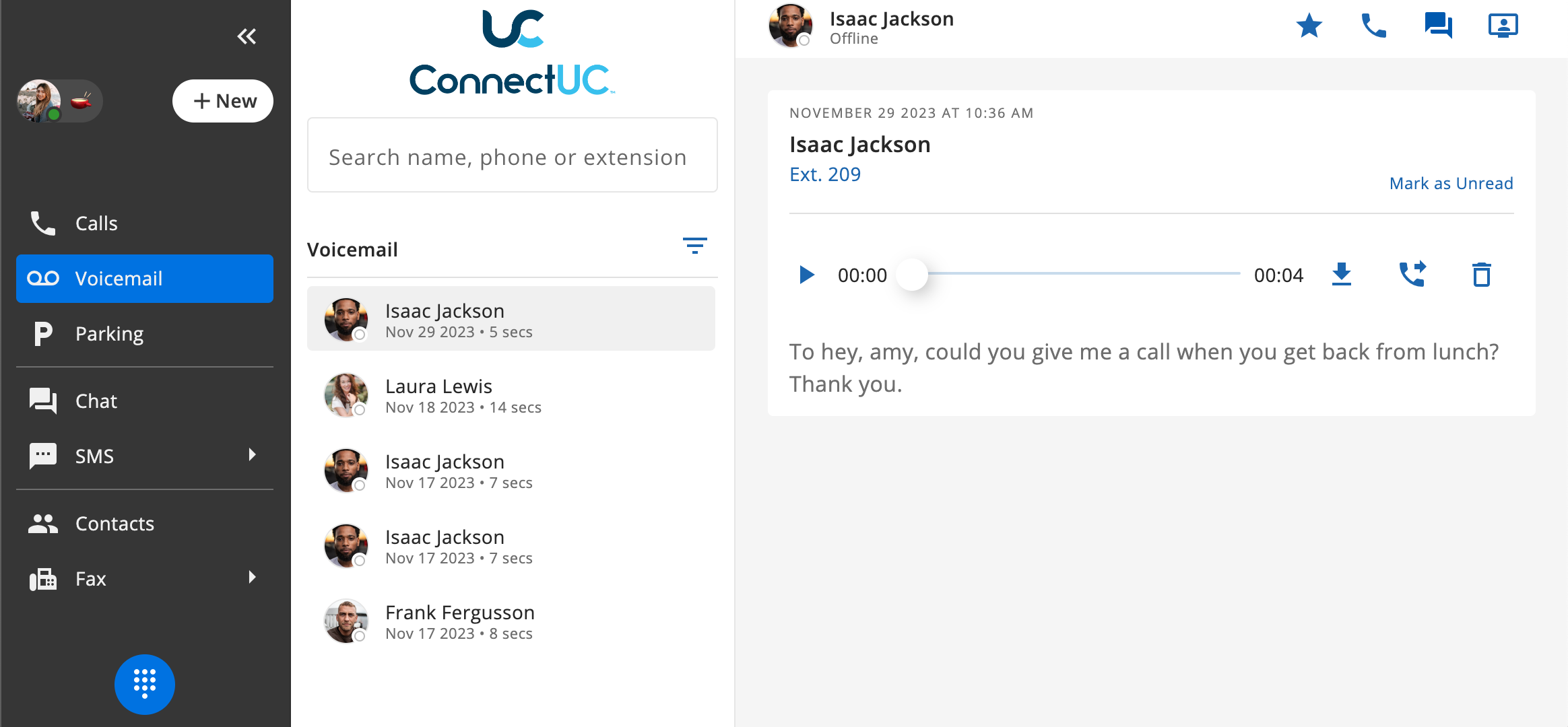
The ConnectUC visual voicemail feature displays a list of the user's voicemail, ordered from newest to oldest.
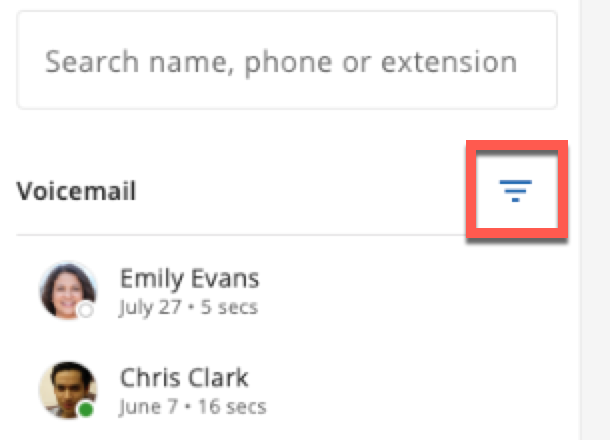
To sort Read or Unread Voicemails, simply click the 'Filter' icon found to the right of the 'Voicemail' header.
Similar to viewing contacts in other tabs within ConnectUC, if a voicemail is left by a co-worker, their presence will display at the top of the details page as well as Favorite, Call, Chat, and Meet quick actions icons.
If the voicemail was left by a known contact (Shared or Personal contact), their name will display an avatar (if available), and Call and SMS icons will display.
If the voicemail was left by an outside caller, the number and CallerID will be shown at the top, as well as the Call icon.
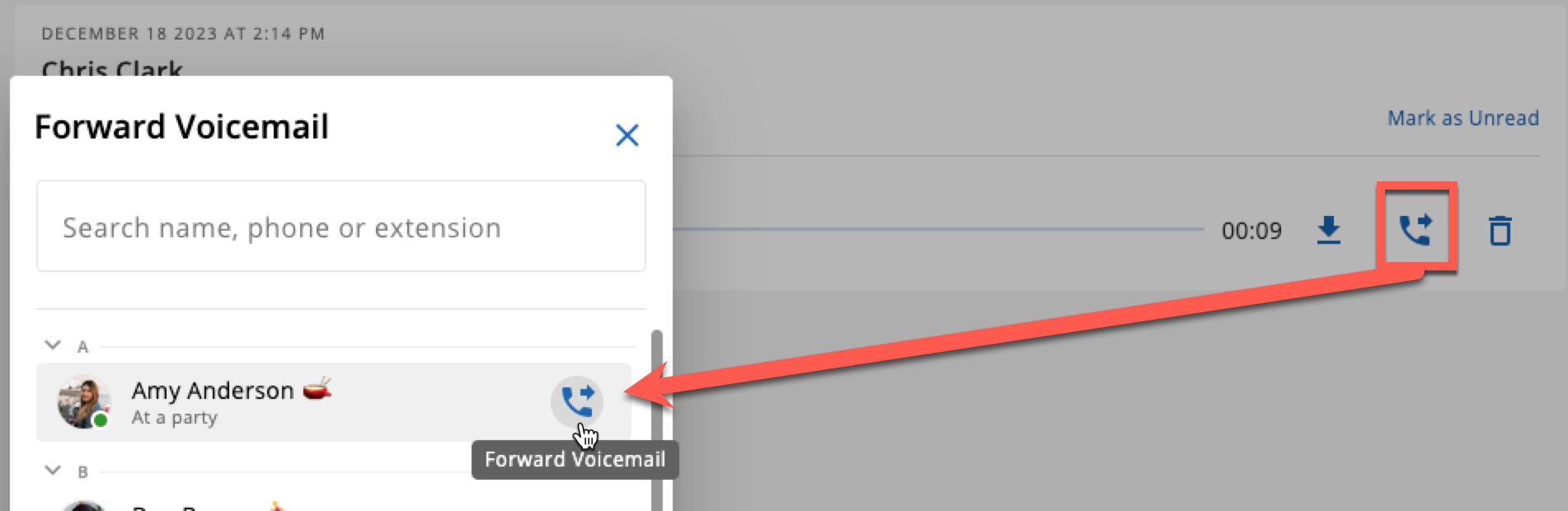
Below the contact name, you will find the standard play button, a draggable position play bar, and download button, a "Forward Voicemail" button, and a delete button.
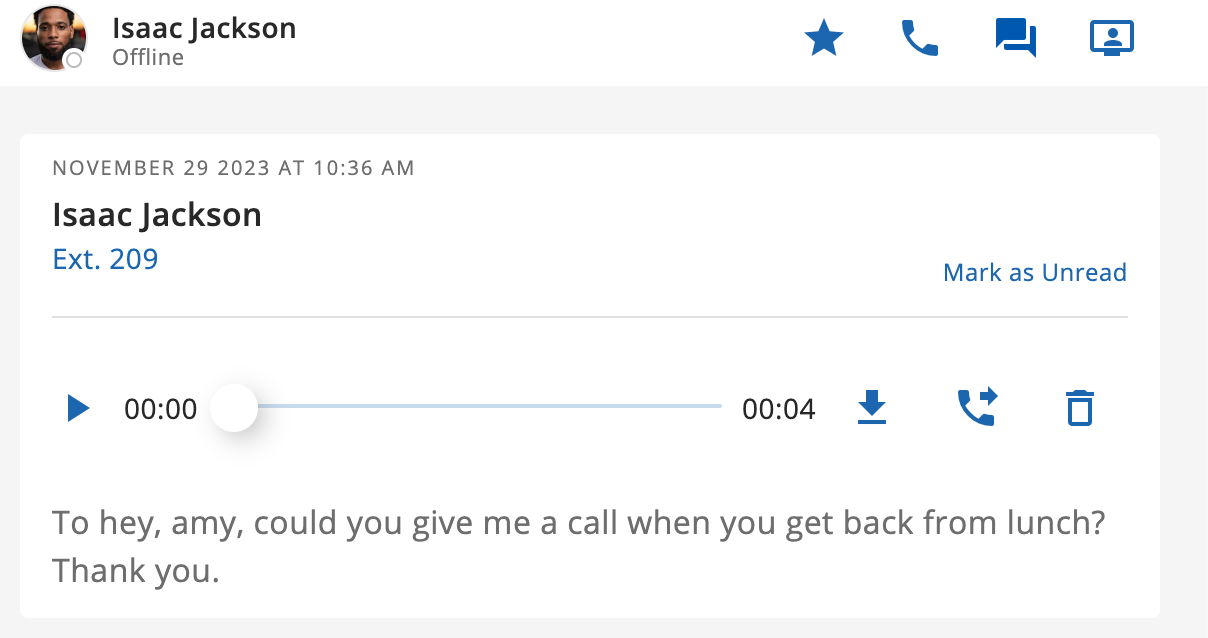
To forward a voicemail to another contact, simply click the "Forward Voicemail" button and then select the contact where you want the Voicemail to be sent.
If the user has transcription enabled, the transcribed text will appear below the play bar.
Clicking on the Avatar coin allows the user to select multiple voicemails for deletion.